YouTube
Using Cube, you can directly export your content to YouTube. Before exporting, you can set the description and visibility of the videos, so you can directly put your content online, or make it public later.
Before exporting, you'll need to allow Cube to interact with your Google account on your behalf.
Files will be uploaded to a channel that your Google account has access to. From there you can also use it in your ad delivery workflow. Cube only stores the link of the uploaded YouTube video for notifying you when the upload is done. Cube does not store any other API Data.
By authorizing Cube to use the YouTube API Services on your behalf, you accept YouTube's Terms of Service (opens in a new tab). You also accept Google's Privacy Policy (opens in a new tab).
Getting started
Setup integration
Before continuing, please read how to connect external platforms:
Connecting Accounts→Select file(s) to export
Locate the file(s) you want to export. If you want to export multiple, select your desired files by marking the checkboxes.
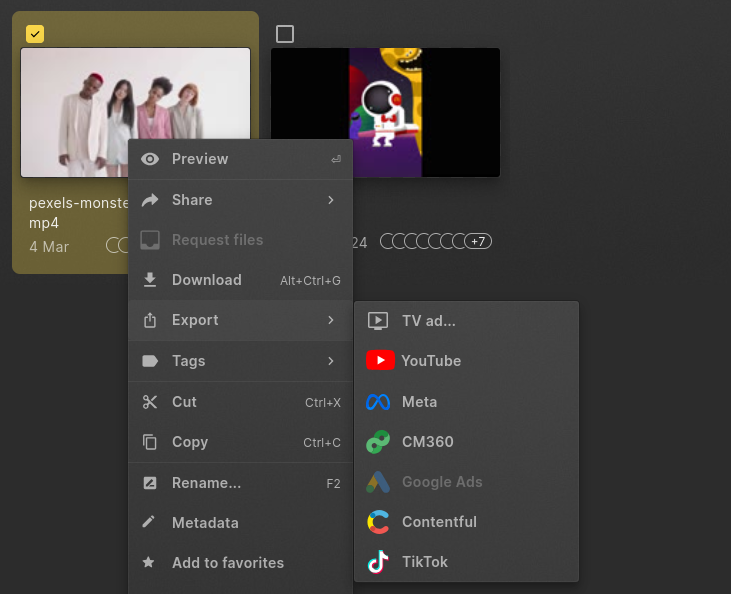
Once you have your selection, right-click to open the context-menu and select "Export > YouTube". The same option is available in the command bar
Select Channel
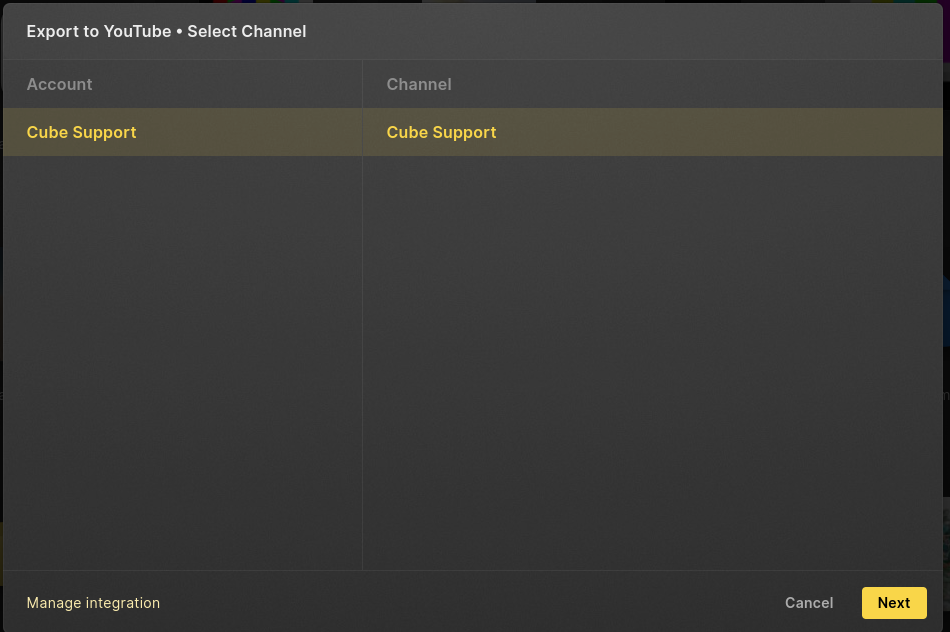
Depending on your Google account and integration, you will see one or more Channels that your account has access to shown. Select the channel you want to export to and press "Next"
Options and Export
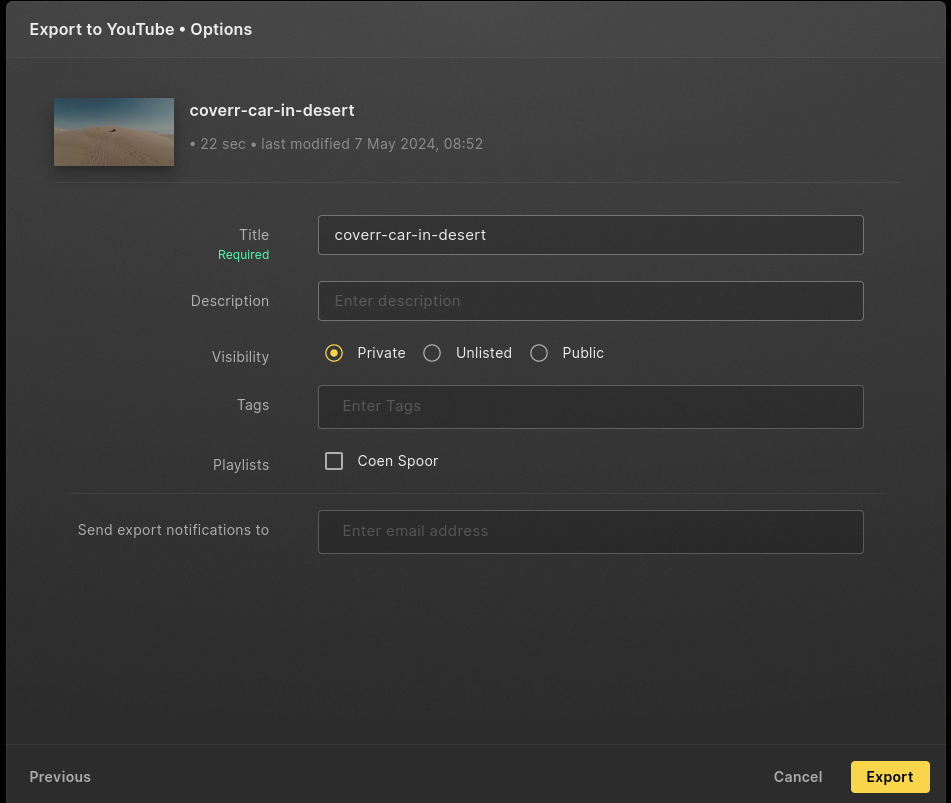
If needed you can change the title of the video as it will appear in your channel. You can also:
- Set the description as it will appear below the video on youtube
- Visibility, by default it will be private
- Tags that are used for searches on youtube
- Add it to playlists in your channel
You can add multiple email addresses that will be notified once the export is done. You will always get an email about your own exports.
Press "Export" to start the transfer
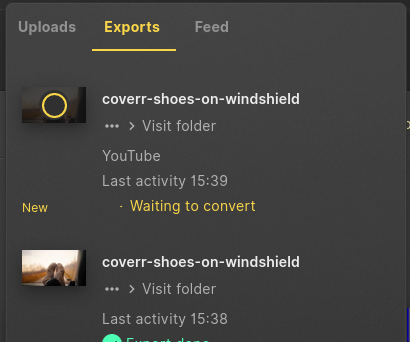
The export queue will appear and keep you up to date about the status of your transfers. Exports to YouTube will be converted to specifications from YouTube.