Getting started
Cube is a creative production platform
With Cube, your team can manage, collaborate on, and deliver media assets in one centralized place.
Key concepts
Ready to know what you can do in Cube? We’ve broken down some core terms and features for you.
Workspace
The workspace is the home for your organization's creative assets. This is where you and your colleagues come to manage media content — store, organize, share, deliver, request and more. Only members who've been invited to join the organization's workspace can get in and work here.
Projects
Projects in Cube allow you to bring related files together in a single space, much like a folder. You can organize a project any way you like and choose who can have access. Use projects to group files around a certain topic or initiative.
Review links
Use review links to share and collect feedback from clients and collaborators on files or folders — it doesn’t matter if they don’t have a Cube account. This allows them to leave comments and draw annotations on your work.
Share links
Use share links to give people outside your organization access to files and folders in the workspace — they do not need to sign in for this. You can choose who has access, what they can do and set an expiration date on your link.
File requests
Use file requests to get anyone to upload files into your workspace. Collect content from people in or outside your organization without them needing to sign in.
Metadata
You can store more than files in your workspace. Keep additional data such as credits, registration numbers, product info and more, right next to the files they are about.
Navigation and controls
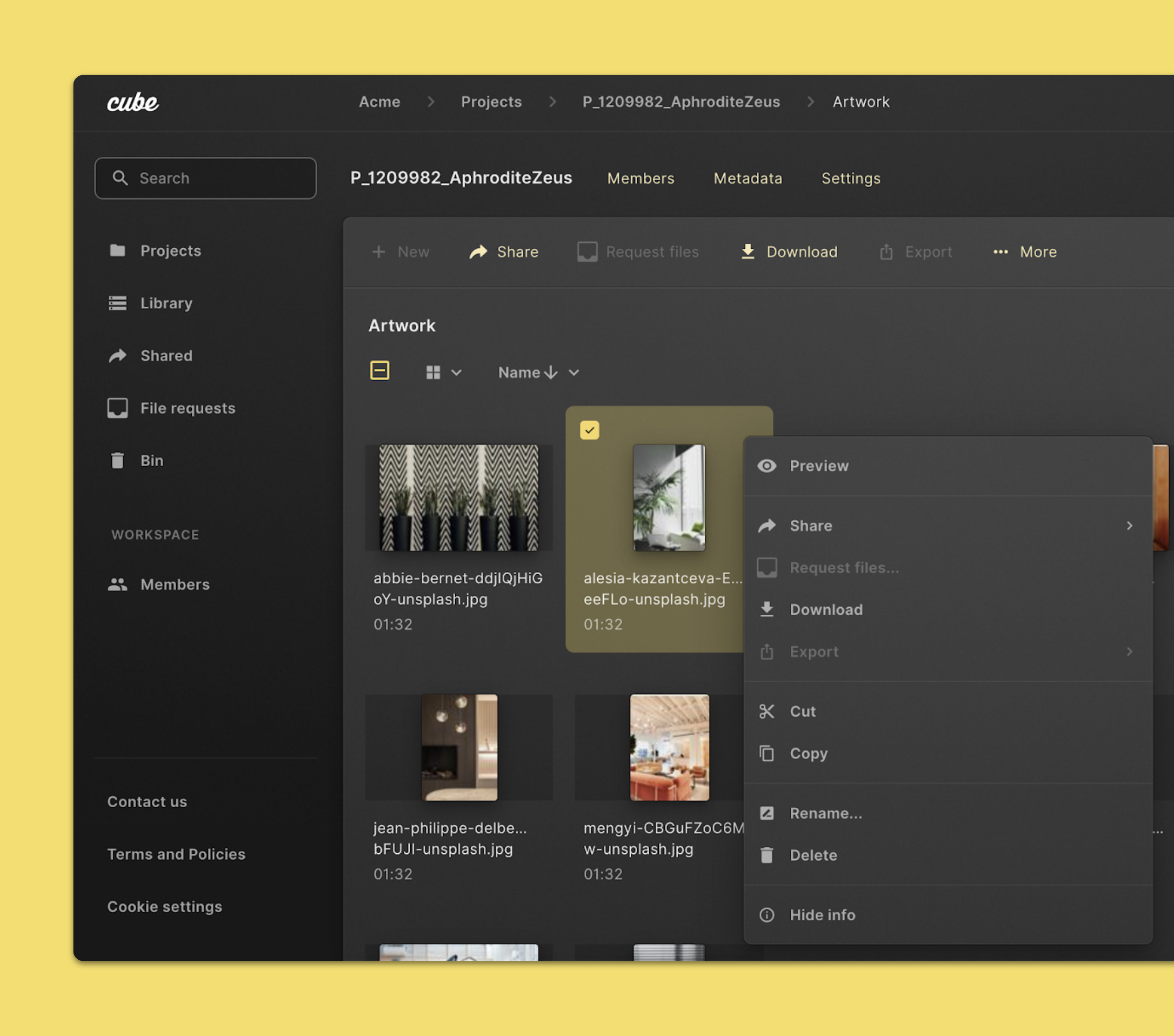
The Cube app works like your computer's file browser. Here are some highlights:
- Double-click to go into a folder or preview an asset.
- Use your browser's Back and Forward arrow buttons to move back or move forward one page.
- Use the breadcrumbs at the top of the page to jump to another page. Click the checkboxes in files and folders to select them…
- …and right-click on your selected files and folders to see what actions you can do.
Interface
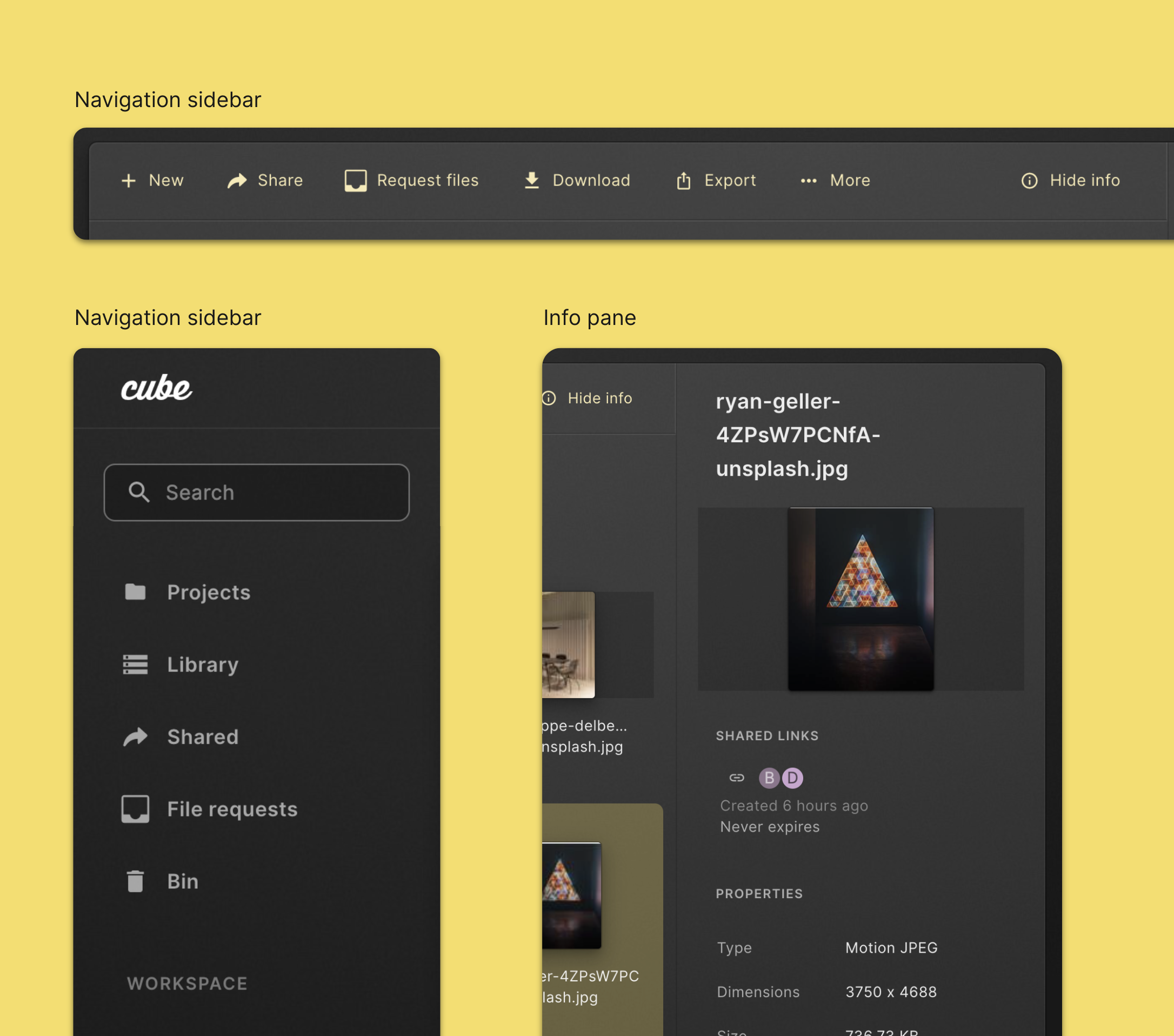
Some key areas of the Cube interface you will want to know about:
- In the navigation sidebar on the left side of the screen, you'll find links to various features and pages that you’ll need.
- The command menu in the top part of the page shows what actions you can do in the context you are in. This options apply to the page you are viewing or the files or folders you have selected.
- The info pane on the right shows information related to the file or folder you are viewing. This is only available when browsing files and folders and can be opened and closed using the Show/Hide info button in the command menu.
- You can find a specific file or folder easily using the search bar.
Sign in to Cube
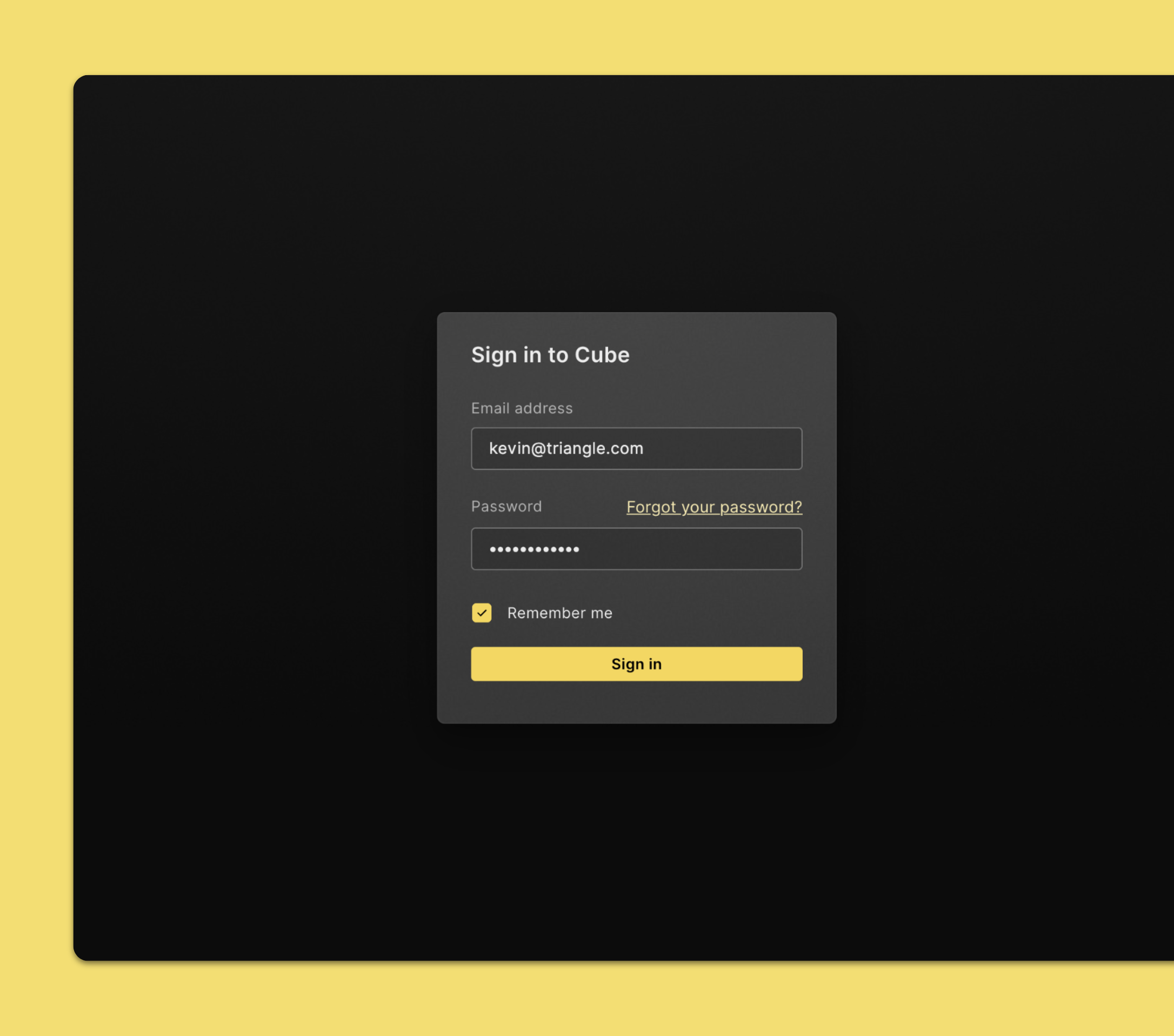
You can sign in to Cube once you've joined a workspace. Follow these steps:
- In your browser, go to https://app.cube-cloud.com (opens in a new tab).
- Enter the email address and password associated with your Cube account.
- Click Sign in.
If you do not have an account yet, ask for one from your Cube workspace admin.
Single sign on
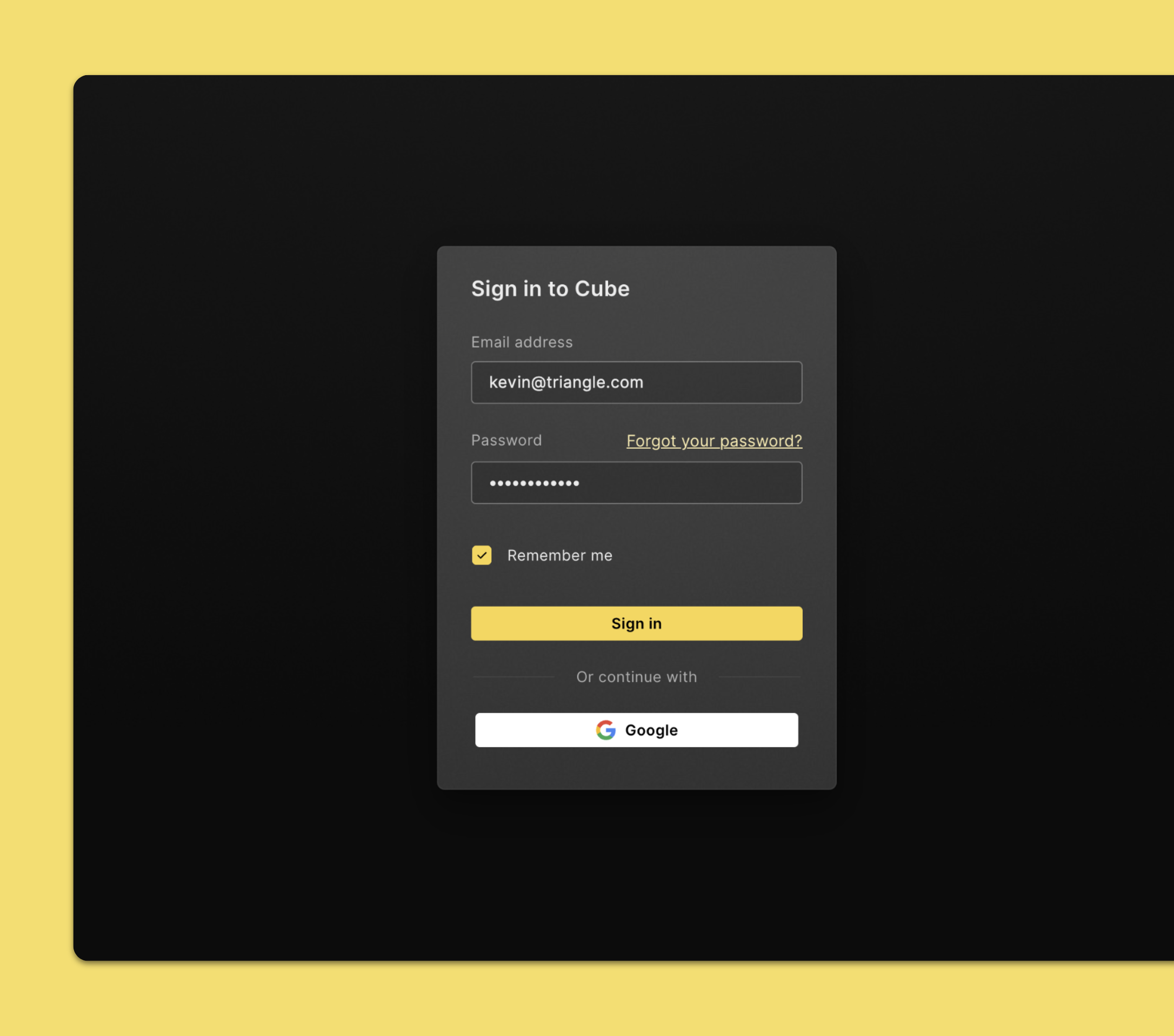
You can also sign in with SSO, if this option is enabled for your workspace:
- In your browser, go to https://app.cube-cloud.com (opens in a new tab).
- Click your preferred provider for example Google.
- Select and login with the account you want to sign in with in the pop-up.
We are planning to add more SSO providers in the future.