File requests
If you want someone to upload files into Cube, you can send your contributors a file request. All they have to do is to upload files in a stripped-down interface. No sign-in needed, no downloading files from another source only to re-upload it into your Cube workspace, and no more uploads going in the wrong folders.
What makes file requests useful is that you can ask files from anyone, whether or not they have a Cube account. Your contributors do not have to deal with your internal workspace structure, remembering passwords or email file size limits. All they have to do is to drop their files into the file request. A request is always linked to a folder inside a project of library, so you can find your files exactly where you expect them. You can also set a deadline, so that everyone knows when to submit their files.
Create a file request
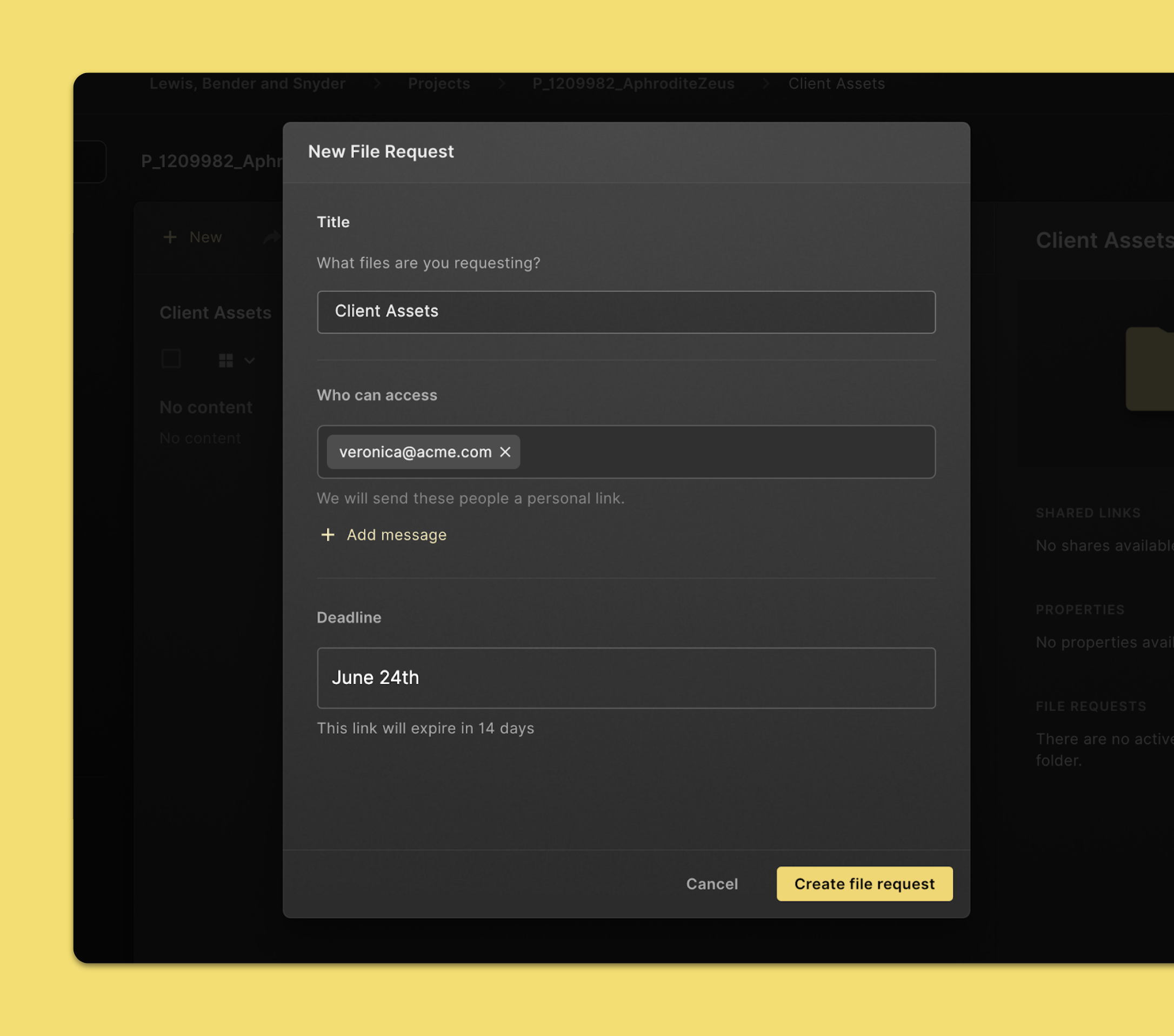
- Select the folder in which you'd like to keep your requested files
- Click Request files in the command menu in the top section of the page.
- Click New file request.
- Give your file request a title.
- Fill in the email addresses of the people you’d like to request from.
- Add a message, if you'd like.
- Set a deadline for this file request.
- When everything's alright, click Create file request.
The people you’ve chosen will now get a personal upload link.
Submit files to a file request
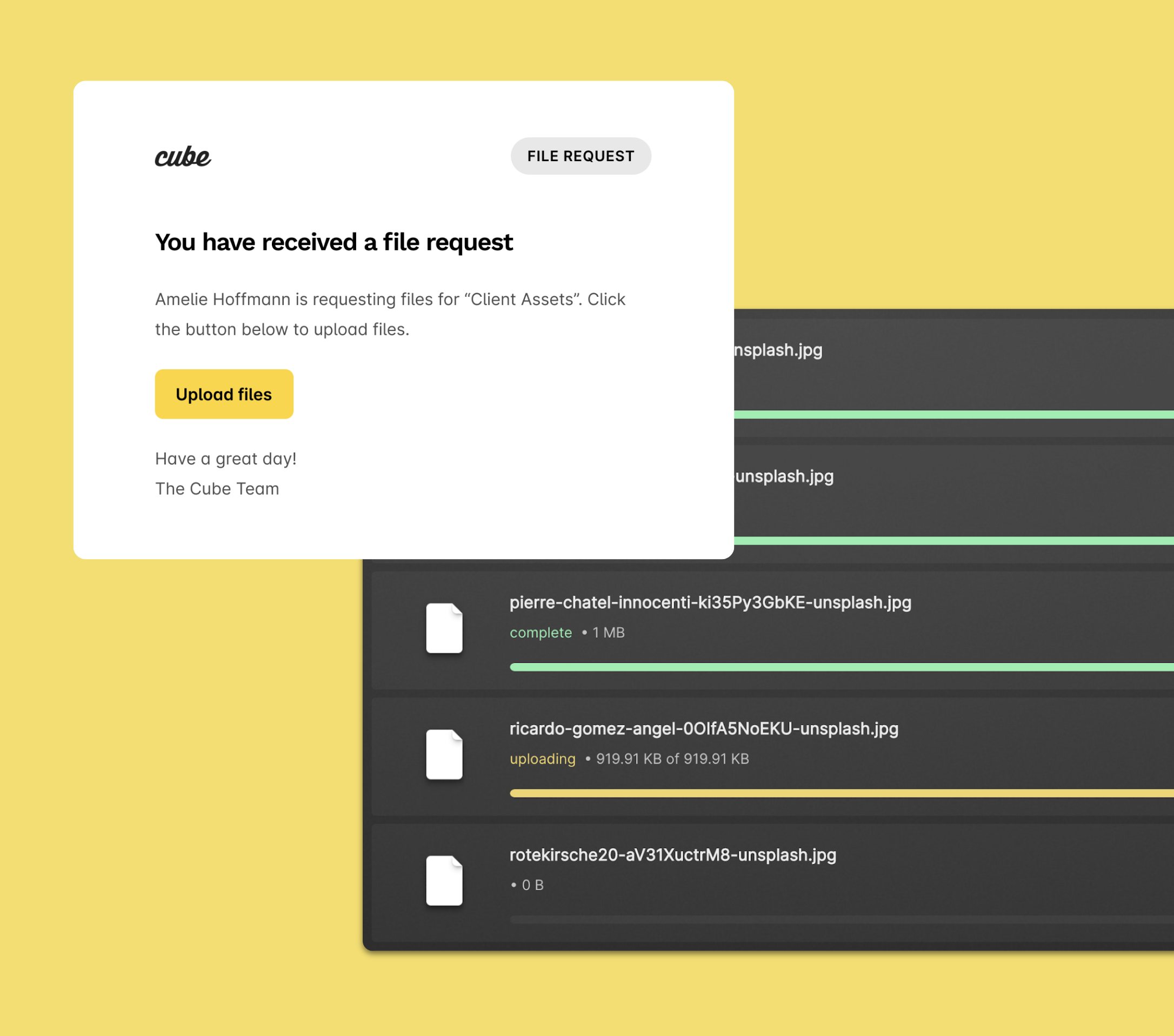
When you receive a request for files, this is what you can do:
- Click Upload files in the email you’ve received.
- Click the plus icon button in the bottom right corner of the page.
- Choose the files you’d like to upload.
- Wait for the uploads to finish. And you’re done! No sign-in needed.
View a list of file requests
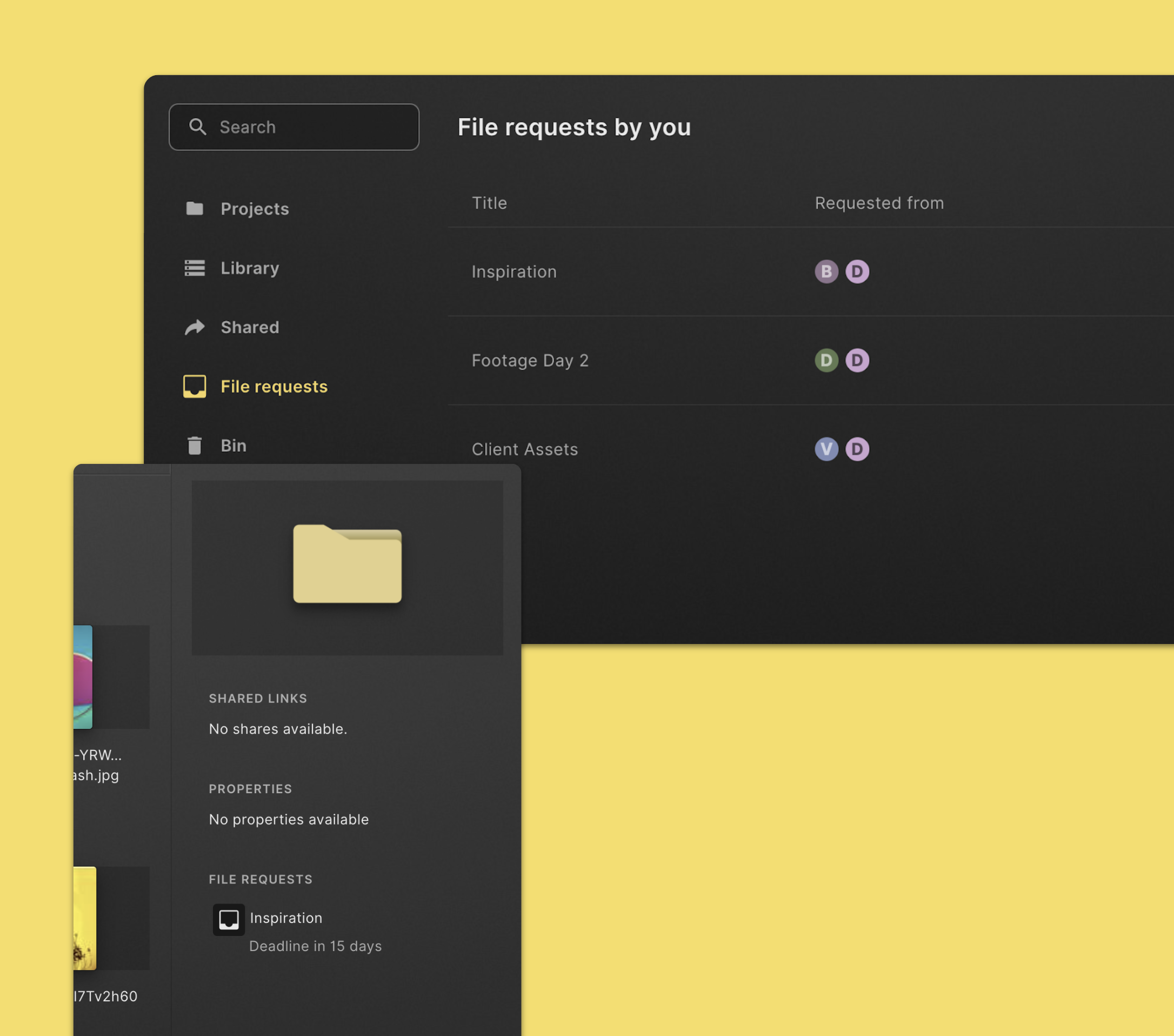
See all file requests you’ve created
- Click File requests in the left navigation sidebar.
- Here's a list of all file requests you've created.
See all file requests for a folder
- Select the folder you'd like to see the file requests for.
- If the info pane on the right is not visible, click Show info in the command menu in the top section of the page.
- You can see a list of file requests in the info pane on the right.
Change settings for a file request
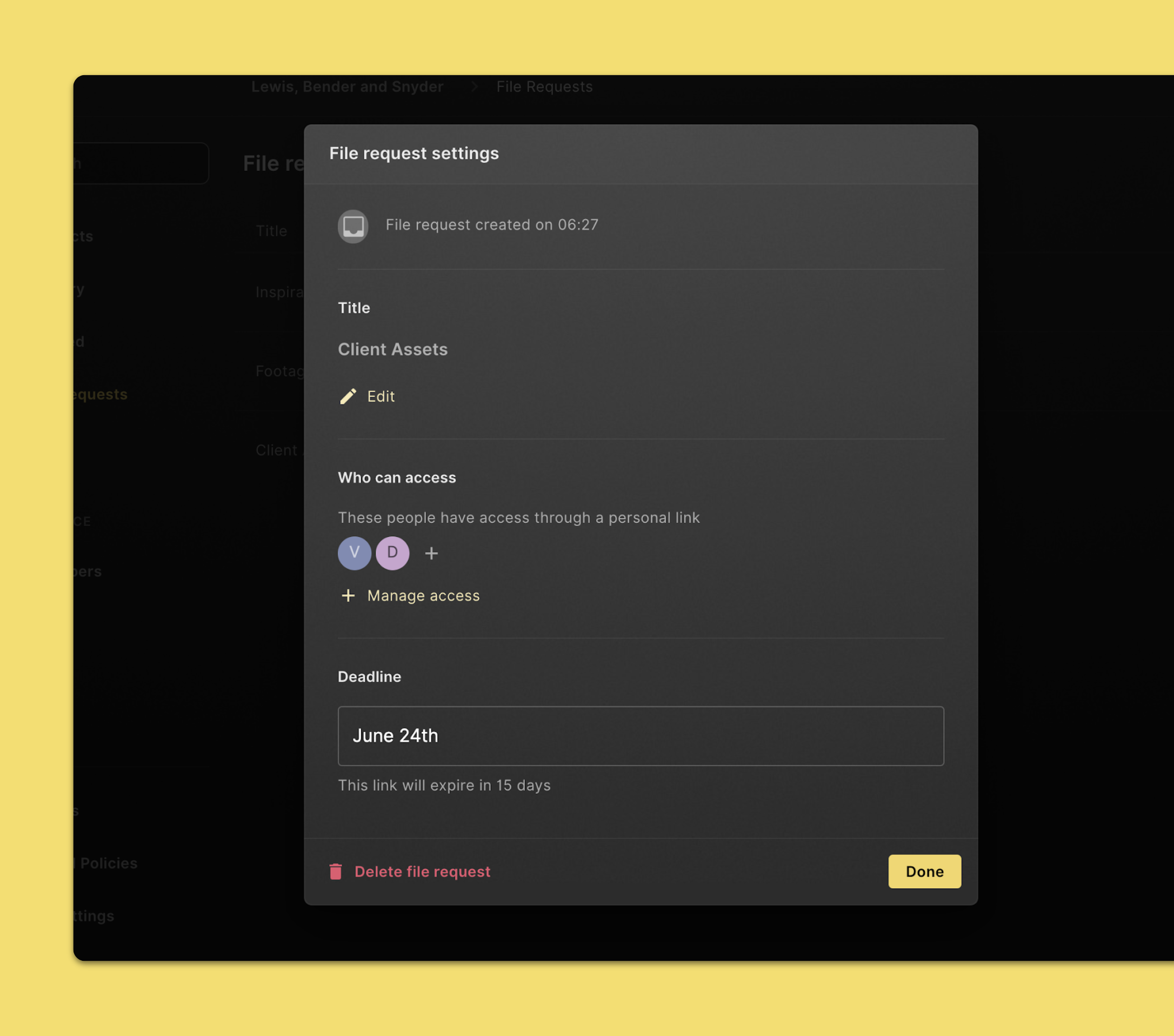
- Select the folder you'd like to modify the file request for.
- If the info pane on the right is not visible, click Show info in the command menu in the top section of the page.
- Click the file request you'd like to change in the info pane on the right.
- Change the settings you'd like to see different.
- When you're done, click Save.
Delete a file request
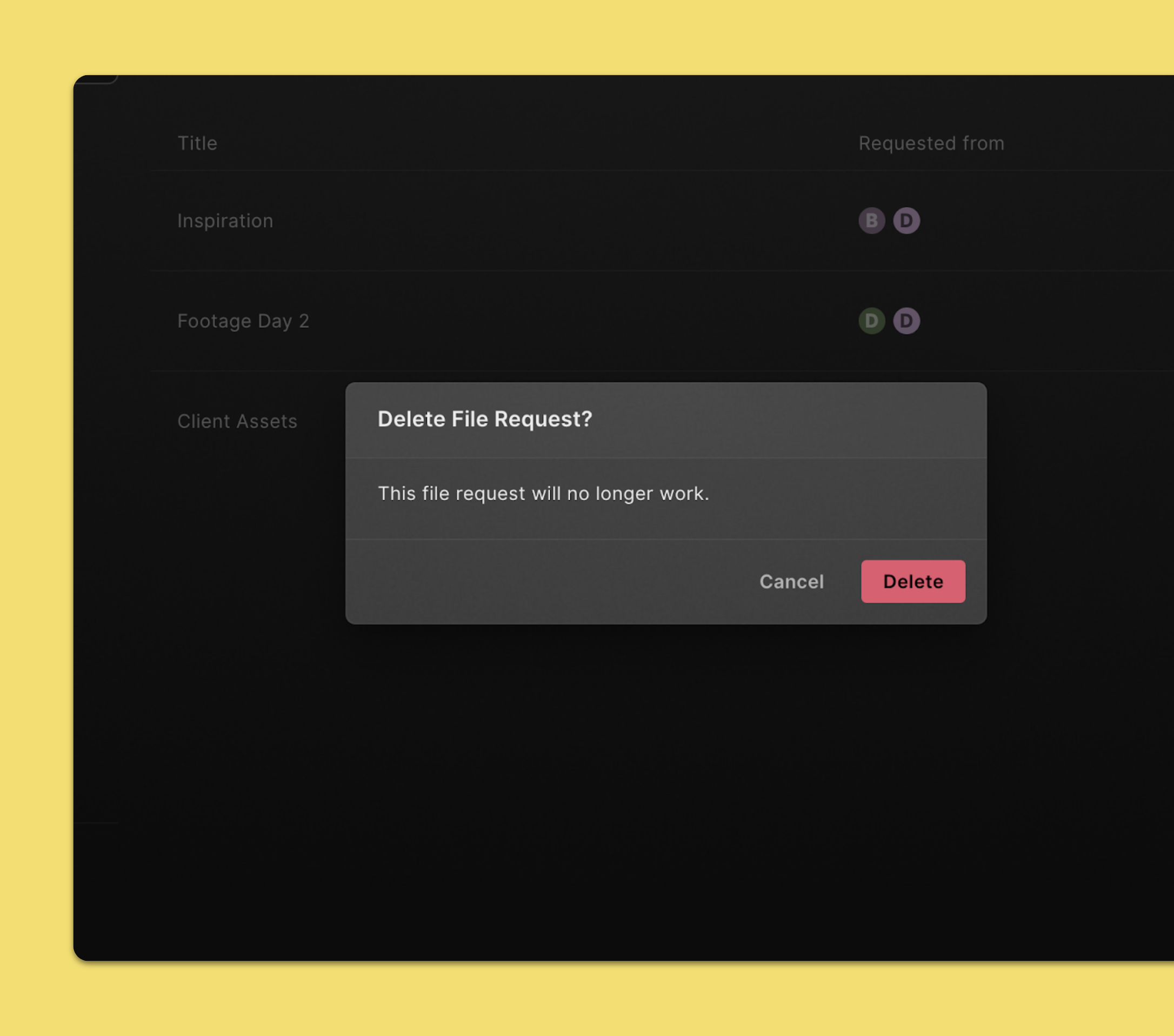
- Select the folder you'd like to delete the file request for.
- If the info pane on the right is not visible, click Show info in the command menu in the top section of the page.
- Click the file request you'd like to delete in the info pane on the right.
- Click Delete. Click Delete again to confirm.