Review links
Cube review links make it easy to share and collect feedback from clients and collaborators. Right where your files are at. Here’s an alternative to receiving comments by email, chat or over the phone. No need to transfer your files to another system too!
Reviewing work with stakeholders can be messy if feedback lives everywhere. Also, sometimes it is hard to express feedback without the right tools. In Cube, send a review link to a file or folder to your clients and collaborators — doesn’t matter if they don’t have a Cube account. This allows them to leave comments and draw annotations on your work. If you want the review link to stop working after a specific date, set an auto-expiration date. You can also choose to let your viewers download the files you’ve shared with them.
Create a review link to a file or folder
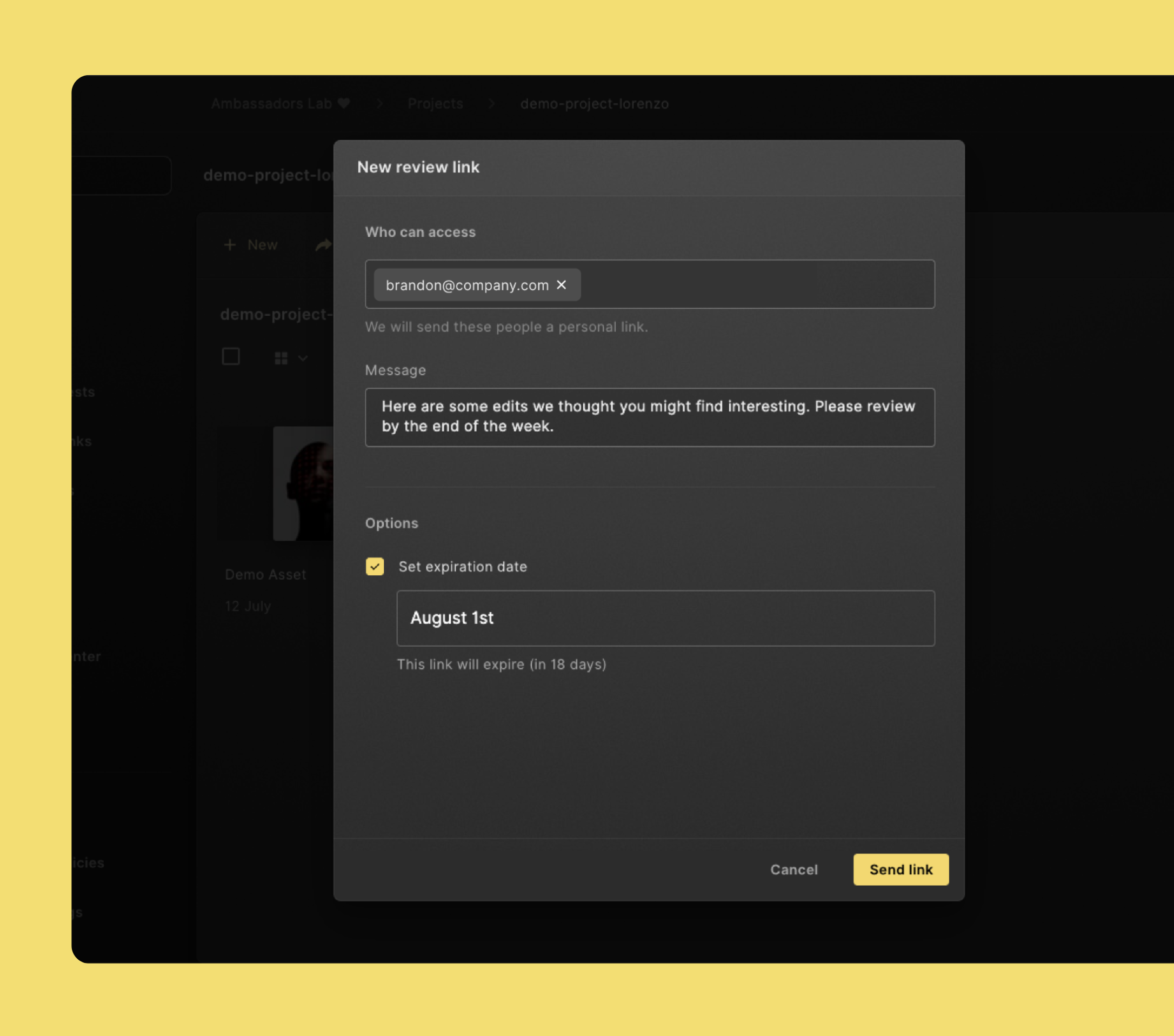
- Select the file or folder you'd like people to review.
- Click Share in the command menu in the top section of the page, followed by Review Link.
- Click New review link.
- Fill in the email addresses of the people who should receive the link.
- Add a message, if you'd like.
- Choose if you want to auto-expire the link on a certain date.
- When everything's alright, click Send Link.
The people you’ve chosen will now get a personal review link.
Open a review link
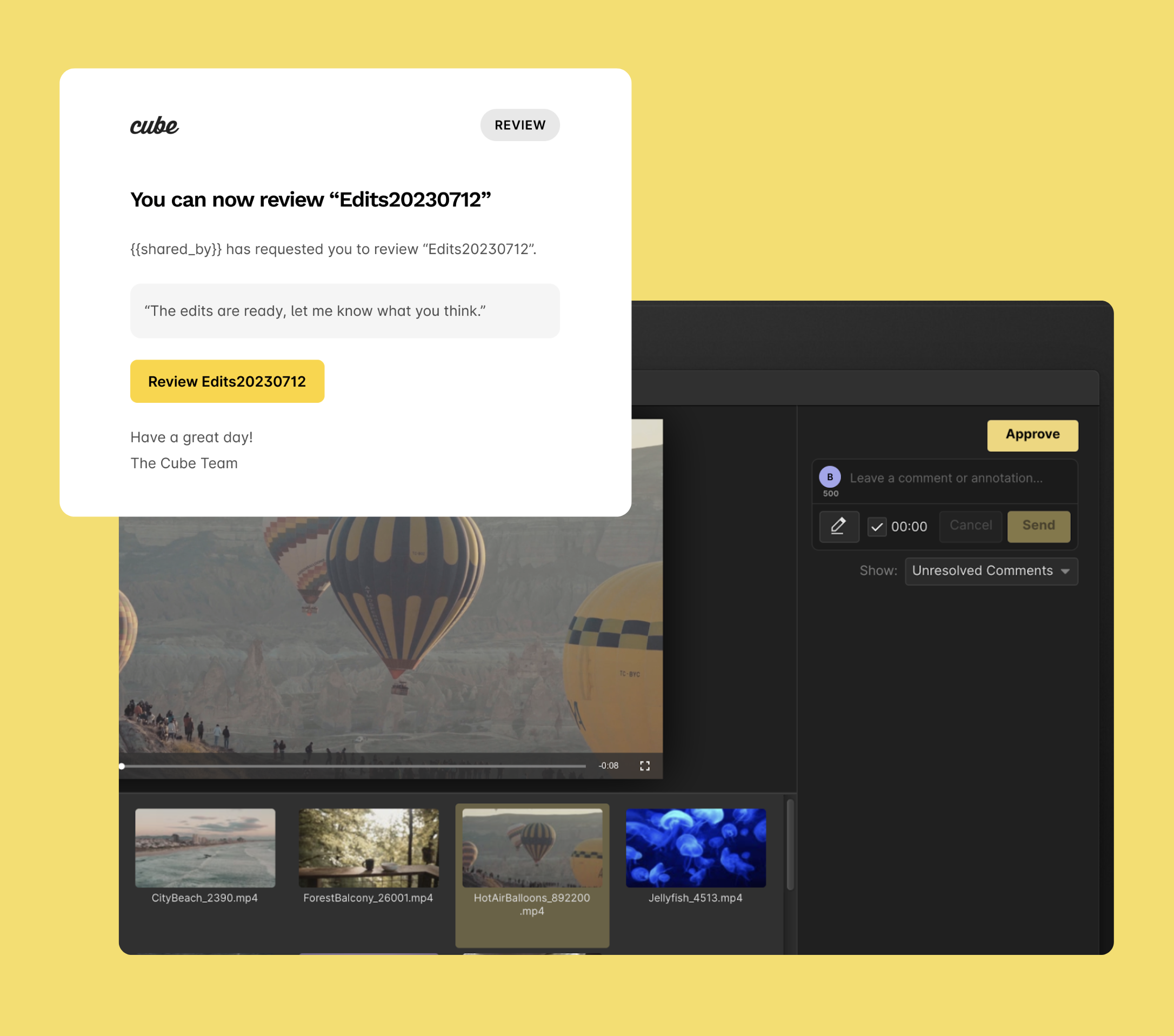
To open a review link someone has shared with you, follow these steps:
- Click Review in the email you’ve received.
- Tada! No sign-in needed!
Add a comment to a file
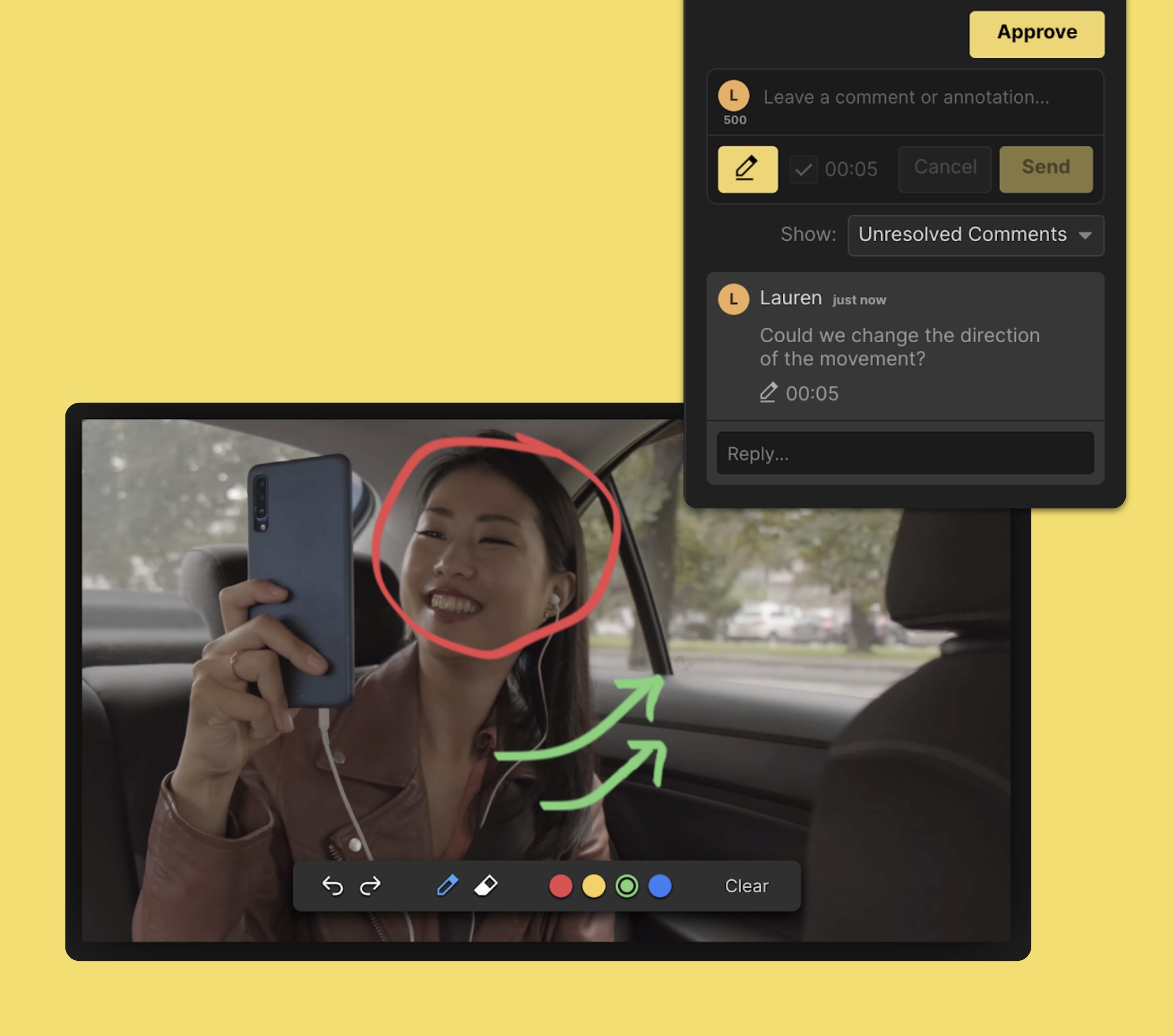
When you receive a review link, here’s how to get started:
- Click the file you’d like to review, if it isn’t already in view.
- Click the text box next to the file preview and type your comment.
- For video files, you have these extra options:
- Link your comment to the video frame you are watching right now. Check the checkbox to make this comment time-specific.
- Draw on the video frame to give clearer feedback. Click the pen icon button to show annotation tools in the video player. Start drawing!
- Click Send when you’re ready to post your comment.
Resolve comments
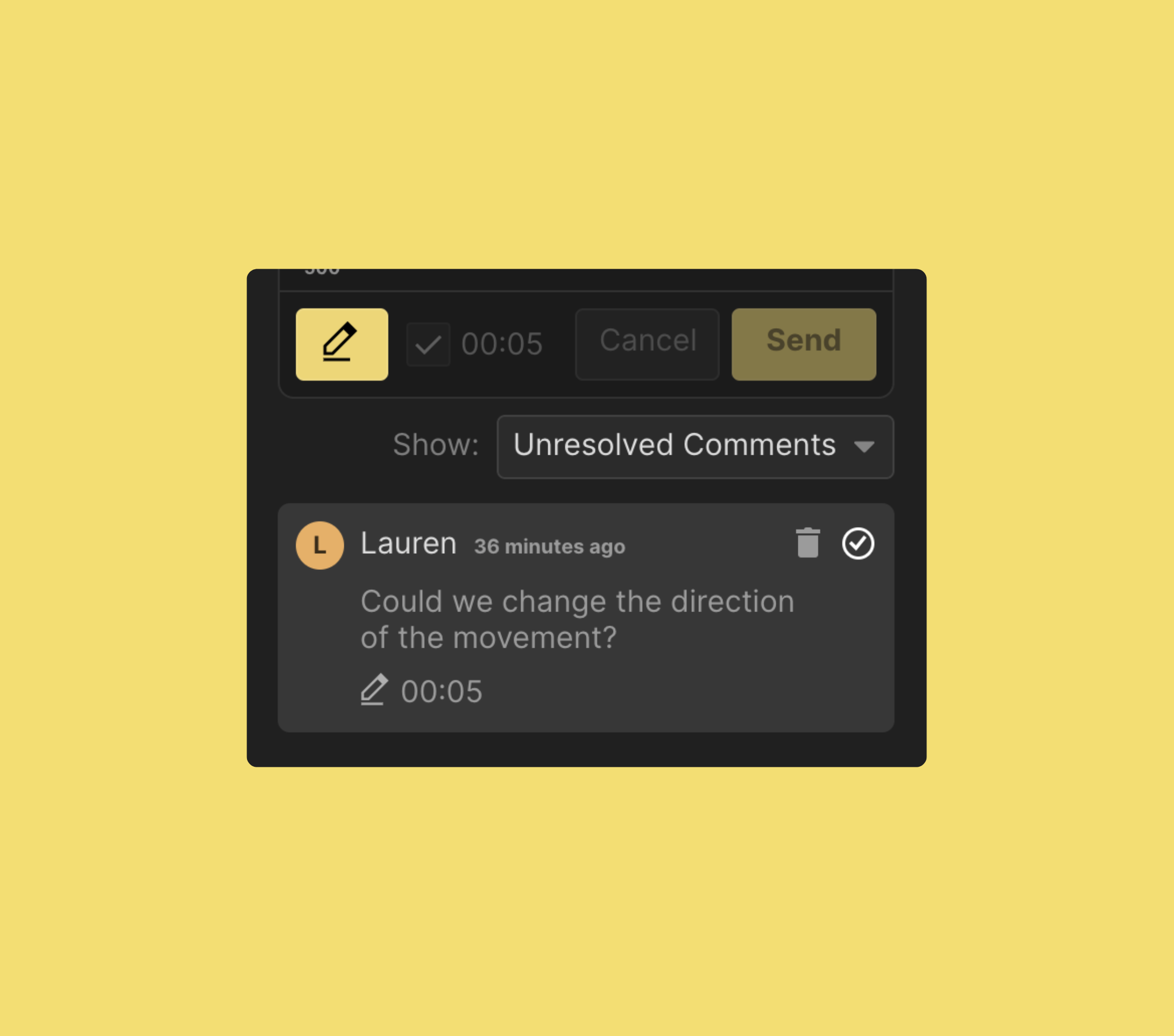
You can mark comments as resolved to unclutter your comment feed.
- Mouse your cursor over the comment you’d like to resolve.
- Click the checkbox in the top right corner of the comment to resolve it.
Filter unresolved comments
You can still view comments even after they’ve been resolved.
- Below the text box, click the dropdown menu.
- Click Resolved comments to display the comments.
Approve a file
- Click the file you’d like to review, if it isn’t already in view.
- Click Approve in top right corner of the screen. This will log that you’ve approved this file.
Withdraw your approval on a file
- Click Approved in the top right corner of the screen to undo approving a file.
View a list of review links
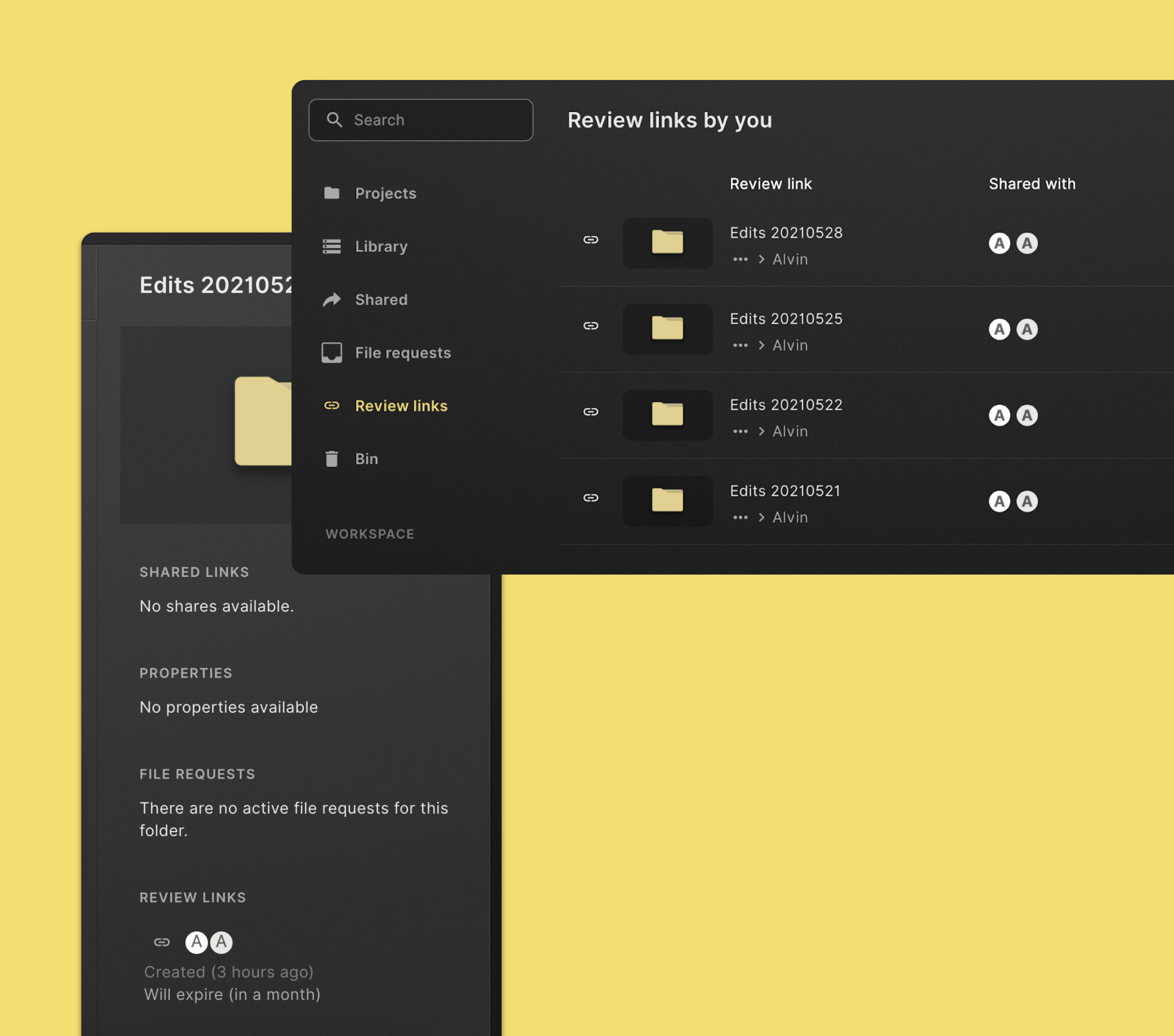
See all review links you’ve created
- Click Review links in the left navigation sidebar.
- Here's a list of all review links you've created.
See all review links for a file or folder
- Select the file or folder you'd like to see the links for.
- If the info pane on the right is not visible, click Show info in the command menu in the top section of the page.
- You can see a list of review links in the info pane on the right.
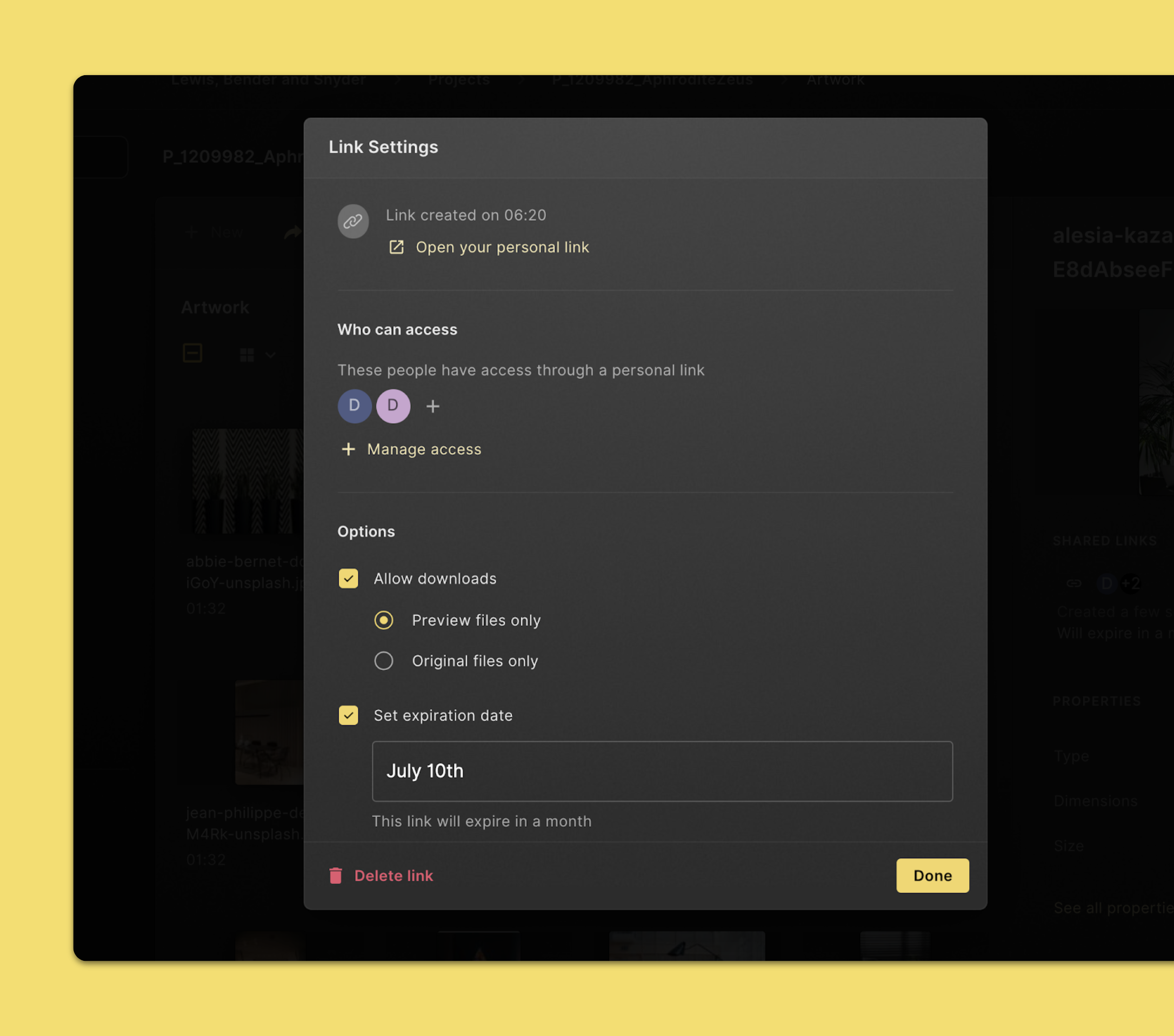
Change settings for a review link
- Select the file or folder you'd like to modify the review link for.
- If the info pane on the right is not visible, click Show info in the command menu in the top section of the page.
- Click the link you'd like to change in the info pane on the right.
- Change the settings you'd like to see different.
- When you're done, click Save.
Tip: You can also find review links you’ve created in the Review Links Overview page. Click Review links in the left navigation sidebar.
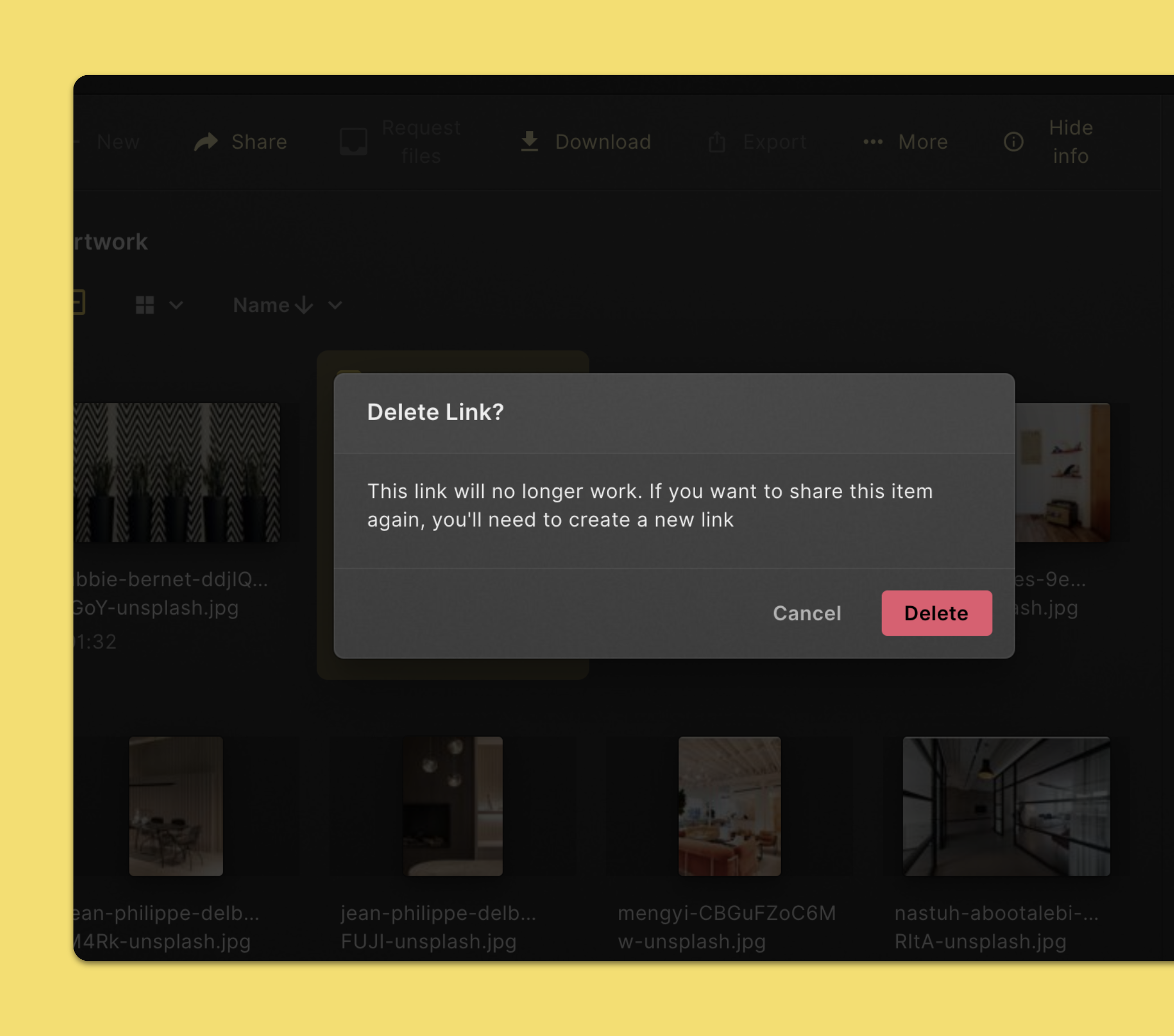
Delete a review link
- Select the file or folder you'd like to delete the review link for.
- If the info pane on the right is not visible, click Show info in the command menu in the top section of the page.
- Click the link you'd like to delete in the info pane on the right.
- Click Delete. Click Delete again to confirm.
Tip: You can also find review links you’ve created in the Review Links Overview page. Click Review links in the left navigation sidebar.