Tags
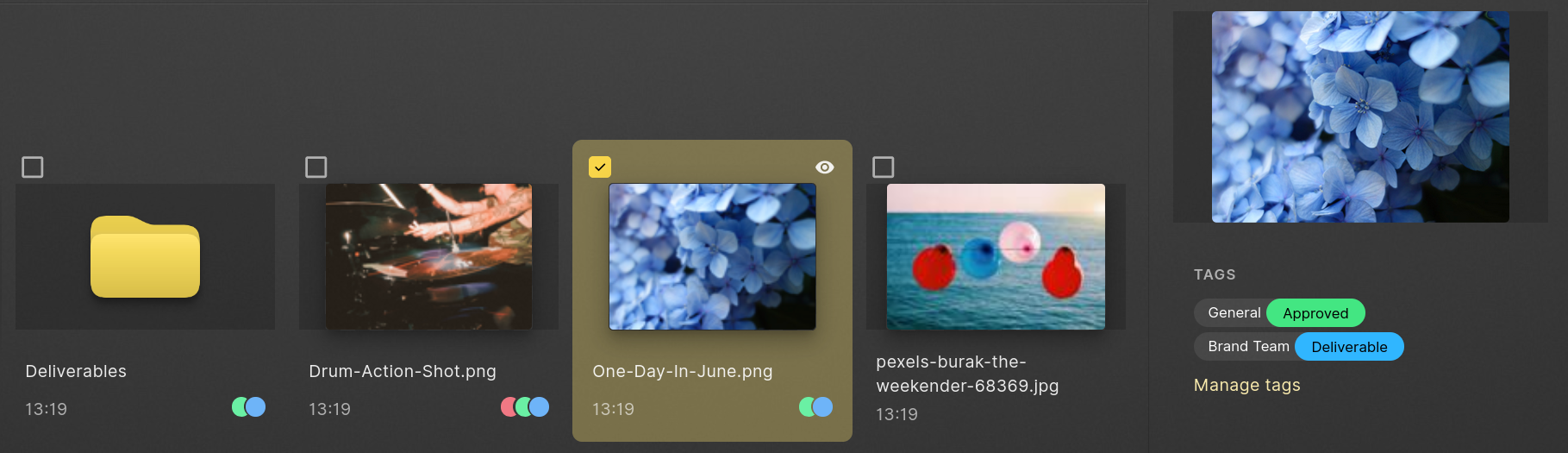
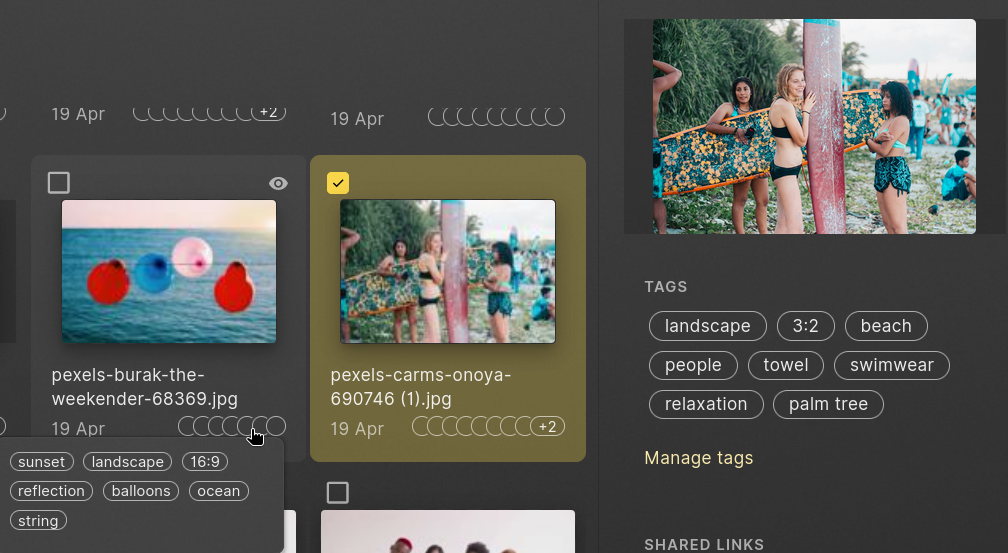
You can use tags to organize your content. Tags are displayed in the content view on each asset that they are applied to and in more detail in the info pane on the right side of the page. Dat
Applying tags
You can apply tags to any selection of files and folders you make in Cube. Right clicking a single asset or entire selection will show the Tags option in the menu:
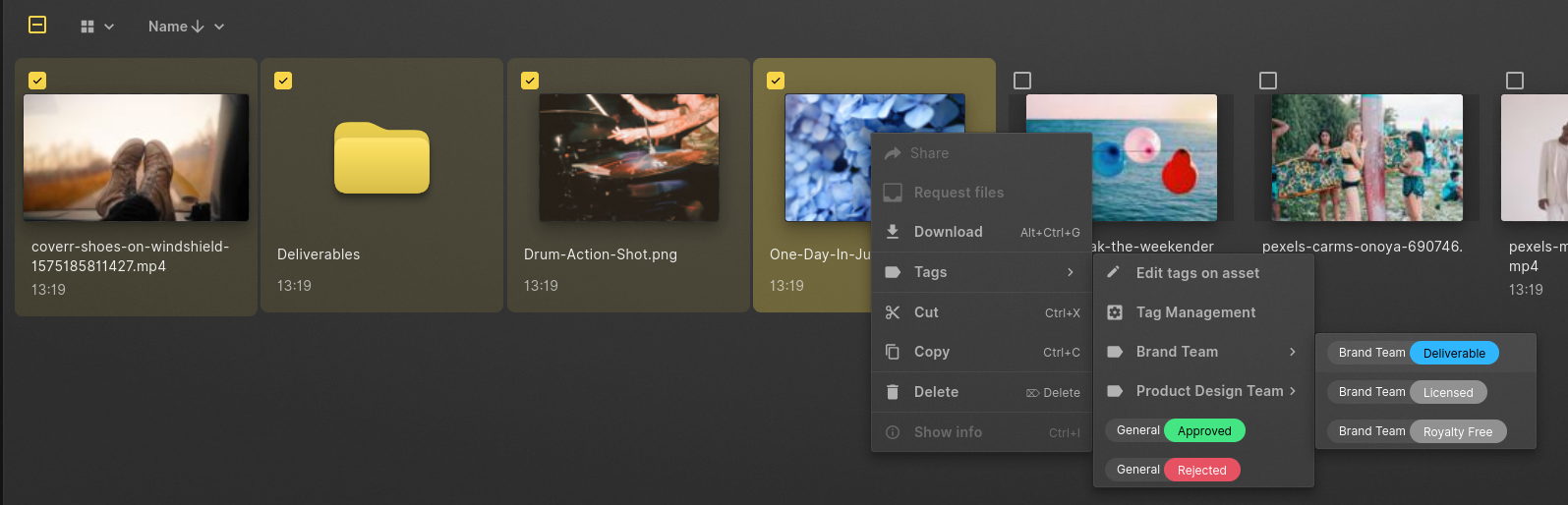
From there you can quickly apply one or more tags. If you need to have more fine-grained control, use "Edit tags..." to assign existing tags or create new ones from one menu:
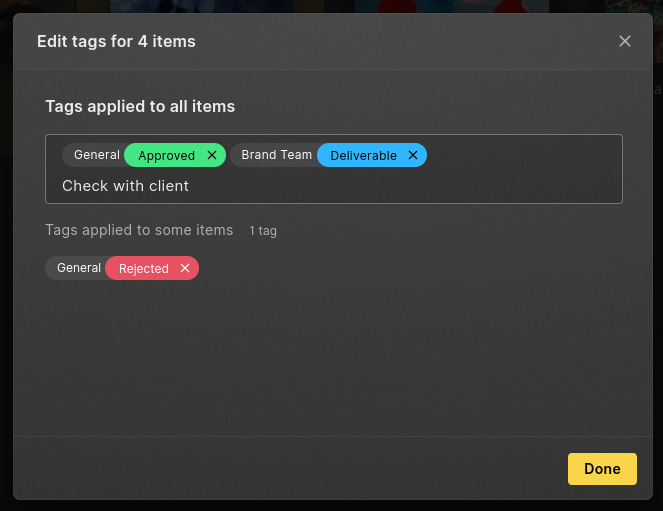 In this screen you can quickly see which tags have been applied to the entire selection and add new tags (even create them directly!) You can also delete tags that are already applied.
Categories
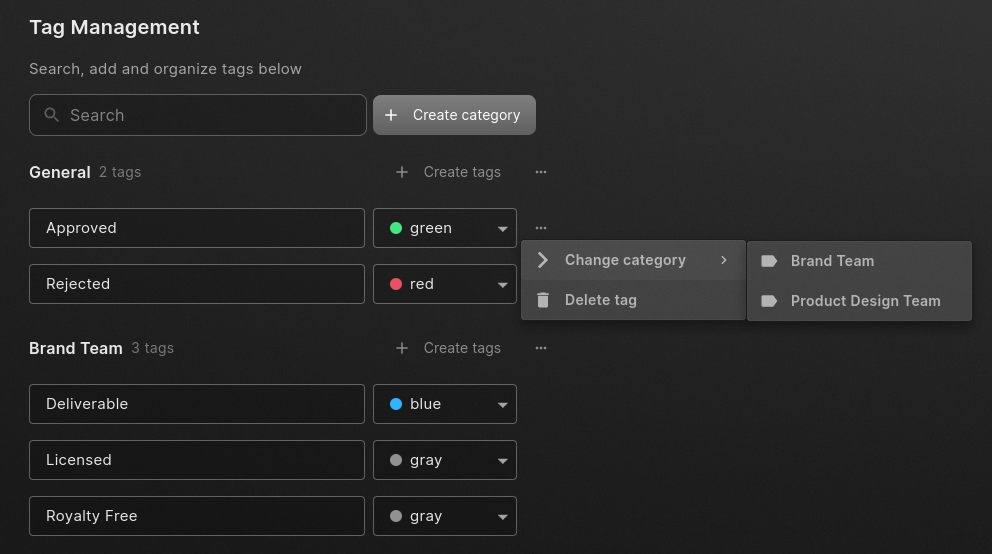
Tags can be categorized into groups that have a specific meaning. For instance you can have all your "status" tags like Approved or Deliverable be grouped into the Brand team category. This allows you to easily organize and access the tags that you need to apply to your assets.
AI Tags
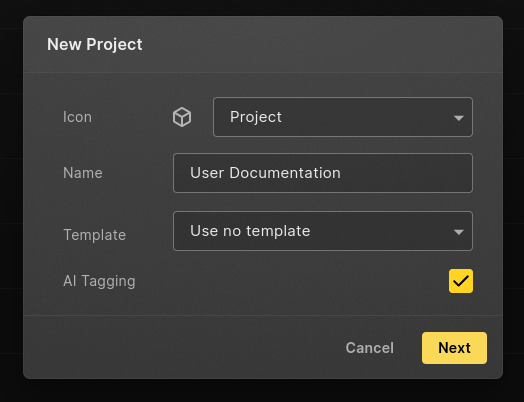
If your workspace or project allows it, you can have AI tags be automatically applied during upload. This will look at the content of your images or videos and detect noticable features, which you can later use to find your content back. For example it can detect the aspect ratio, what kind of objects / scenery there is and a lot of other tags that match the content.
You apply AI tags for the entire workspace, or enable it per project:
Admin Center
Everything Tags related is editable through the Admin Center. From here you can create and delete categories, move existing and new tags into categories.