Basic file and folder actions
Managing and navigating your files in Cube is very similar to how it works on your computer.
Upload a file
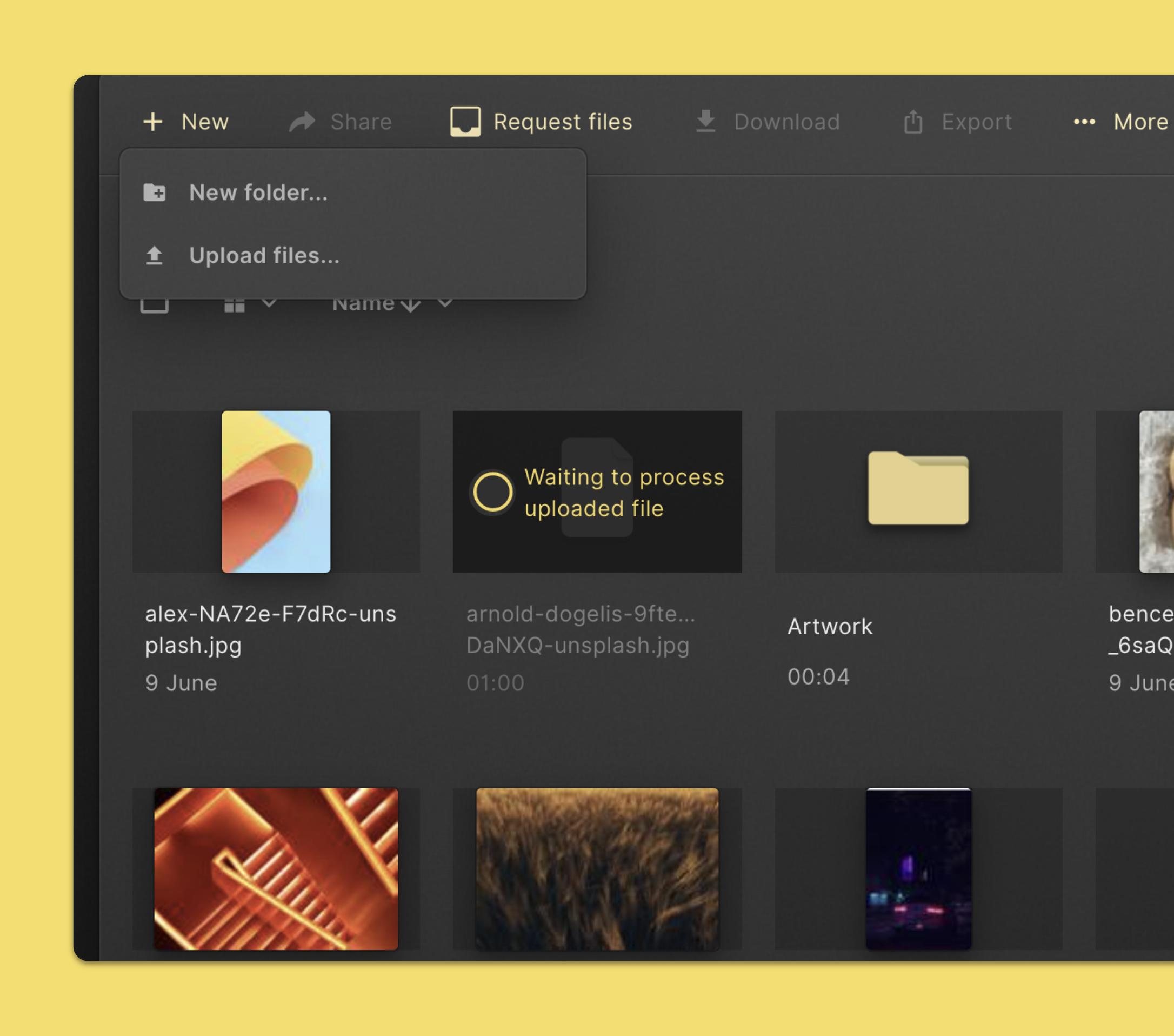
You can upload any file into a project or the library in your workspace. You can:
- Go to the folder you’d like to upload something into.
- Click New in the command menu in the top section of the page. Then click Upload files in the dropdown menu.
- Choose the file(s) you’d like to get into Cube.
You can also upload files by dragging them from your computer and dropping them in the interface. Most files will be ready in no time. If your file is large, it make take a bit longer for the file to finish processing.
Preview a file
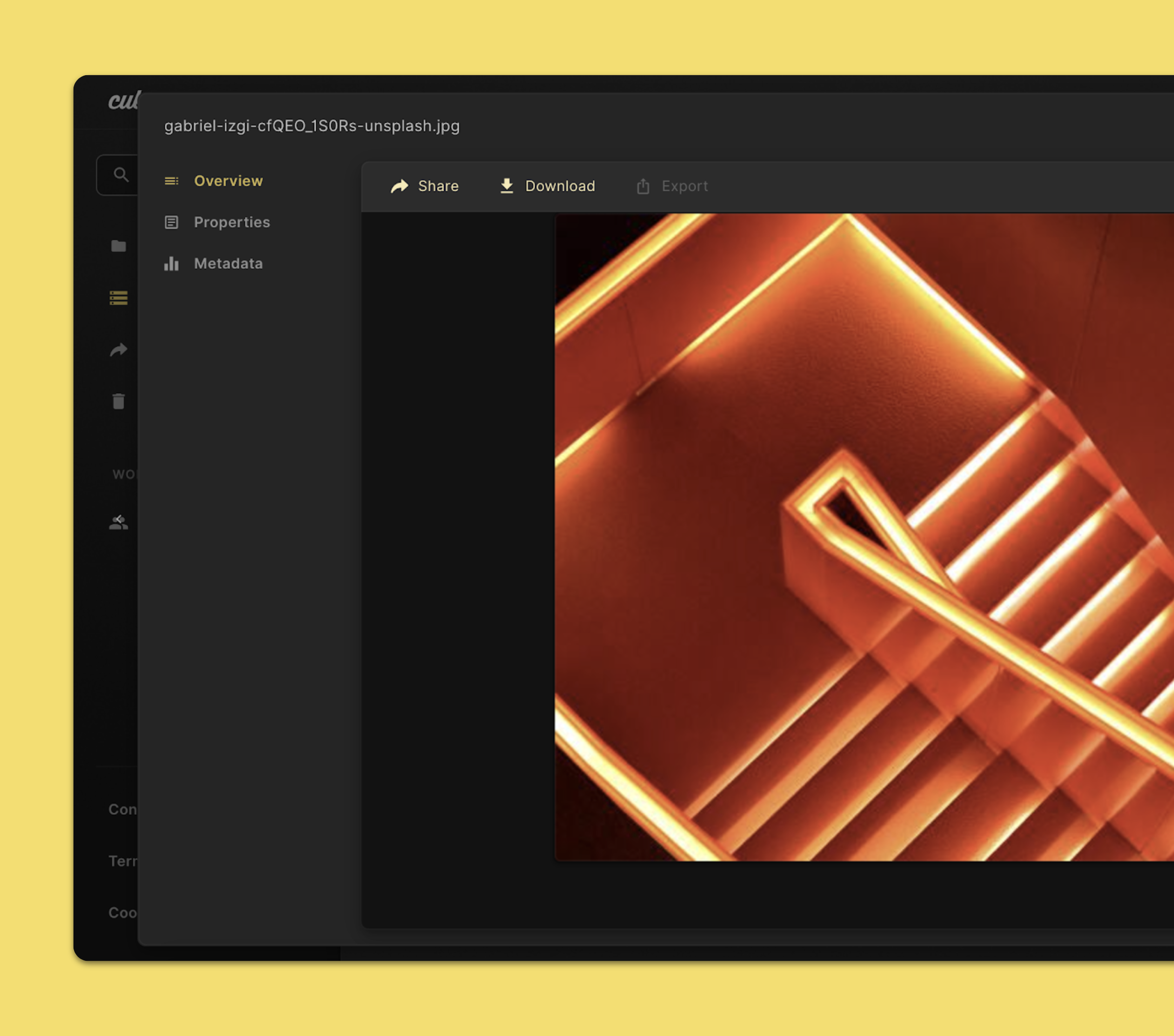
You can preview most video, audio, image and PDF formats in Cube. Here’s how:
- Double-click the file you’d like to preview.
- That’s it. You’ll see a lower quality web-optimized preview of the original file.
When previewing a file, you can easily preview another file from this view with the arrow buttons at the side of the screen.
Tip: You can also preview a file by selecting it and pressing spacebar.
View info about a file or folder
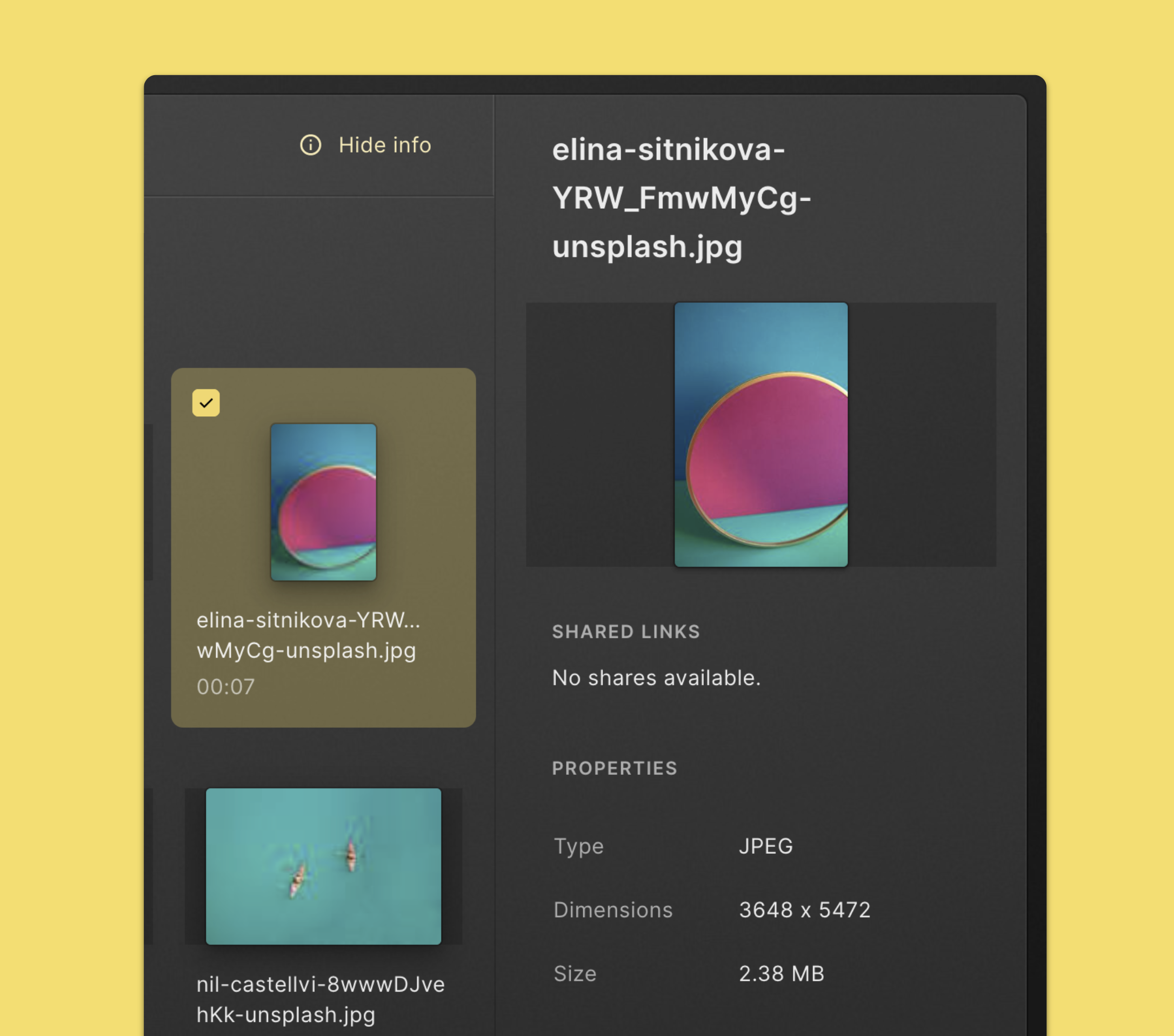
Each file or folder contains basic info about its technical properties, share links, file requests and more. To view this info, follow these steps:
- Select the file or folder you’d like to inspect. Or double-click on a file to open a preview.
- If the info pane on the right is not visible, click Show info in the command menu in the top section of the page.
- You’ll now see info related to the item you’ve selected or are viewing.
- Click See all properties for more.
Create a folder
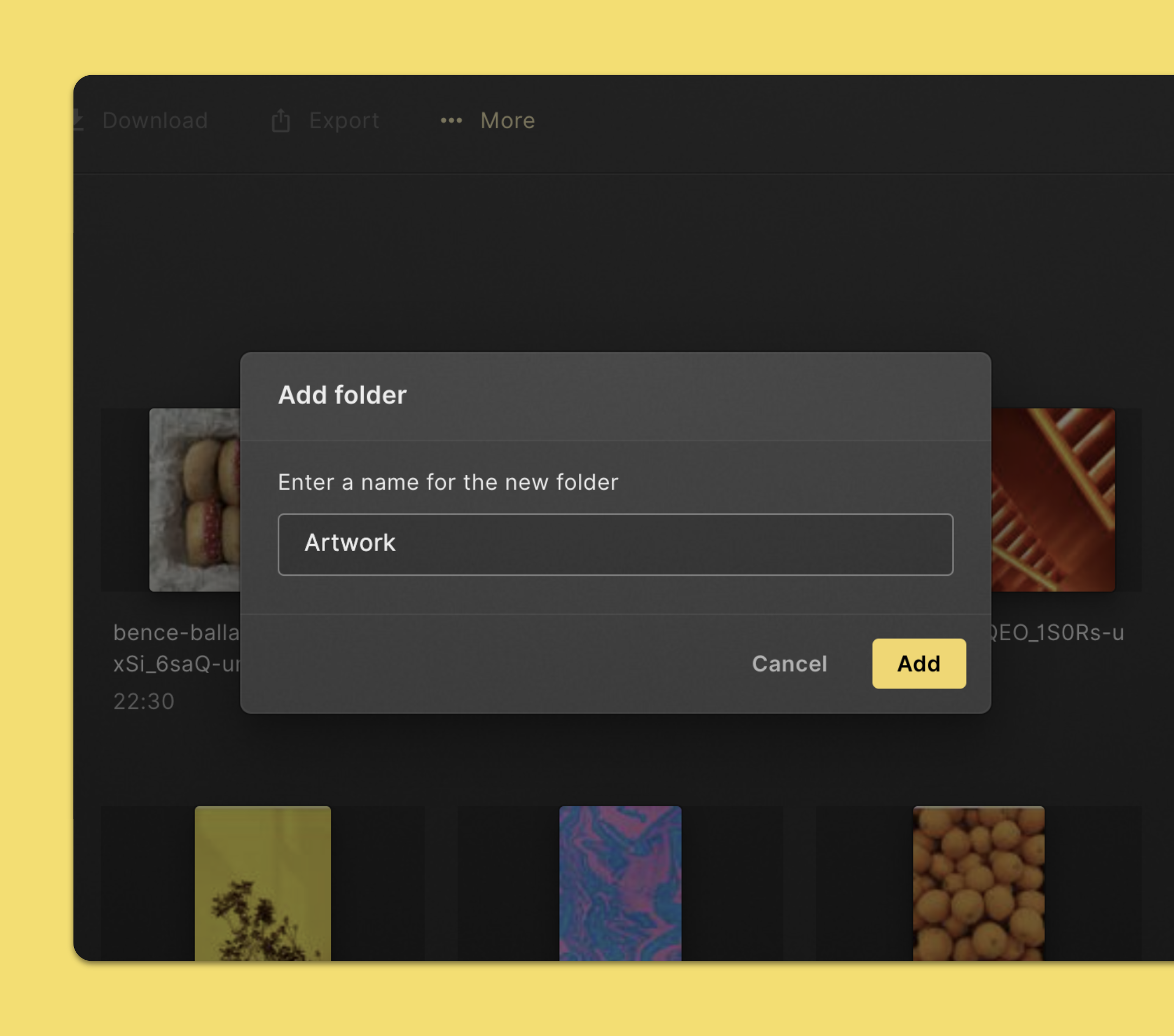
Create folders and subfolders to help you organize your files.
- Go to the folder you’d like to create a folder in.
- Click New in the command menu in the top section of the page. Then click New folder in the dropdown menu.
- Choose the file(s) you’d like to get into Cube.
You can also drag and drop a file into the interface.
Download a file
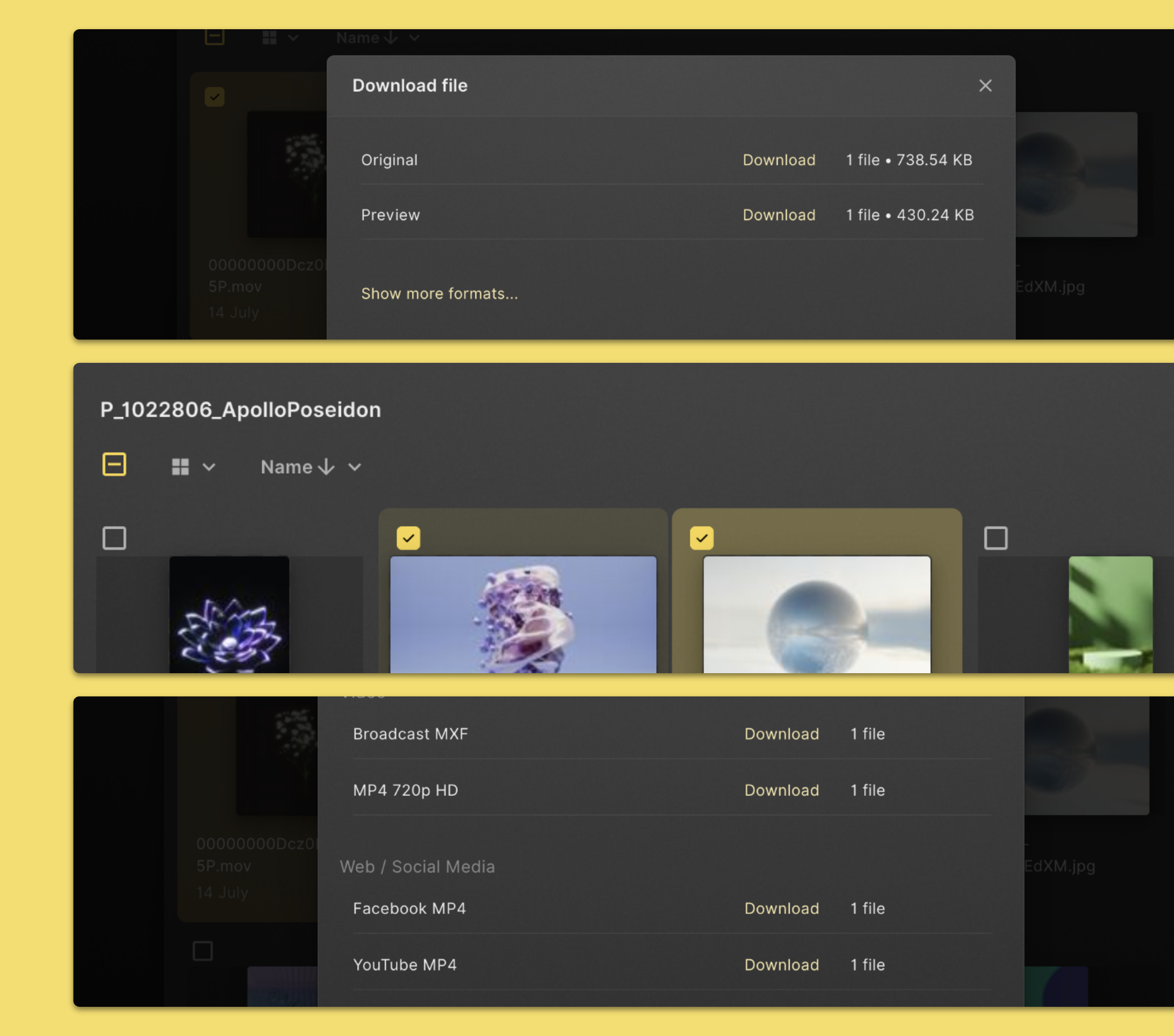
You can download assets stored in your workspace. You can choose the original file as uploaded or a lower quality preview file if available. To do this:
- Select the file you’d like to download
- Click Download in the command menu in the top section of the page
- Choose the format you’d like to download and click Download.
You can download multiple files by selecting the assets before clicking Download. You are also able to select more download formats if you click Show more formats….
Rename a file or folder
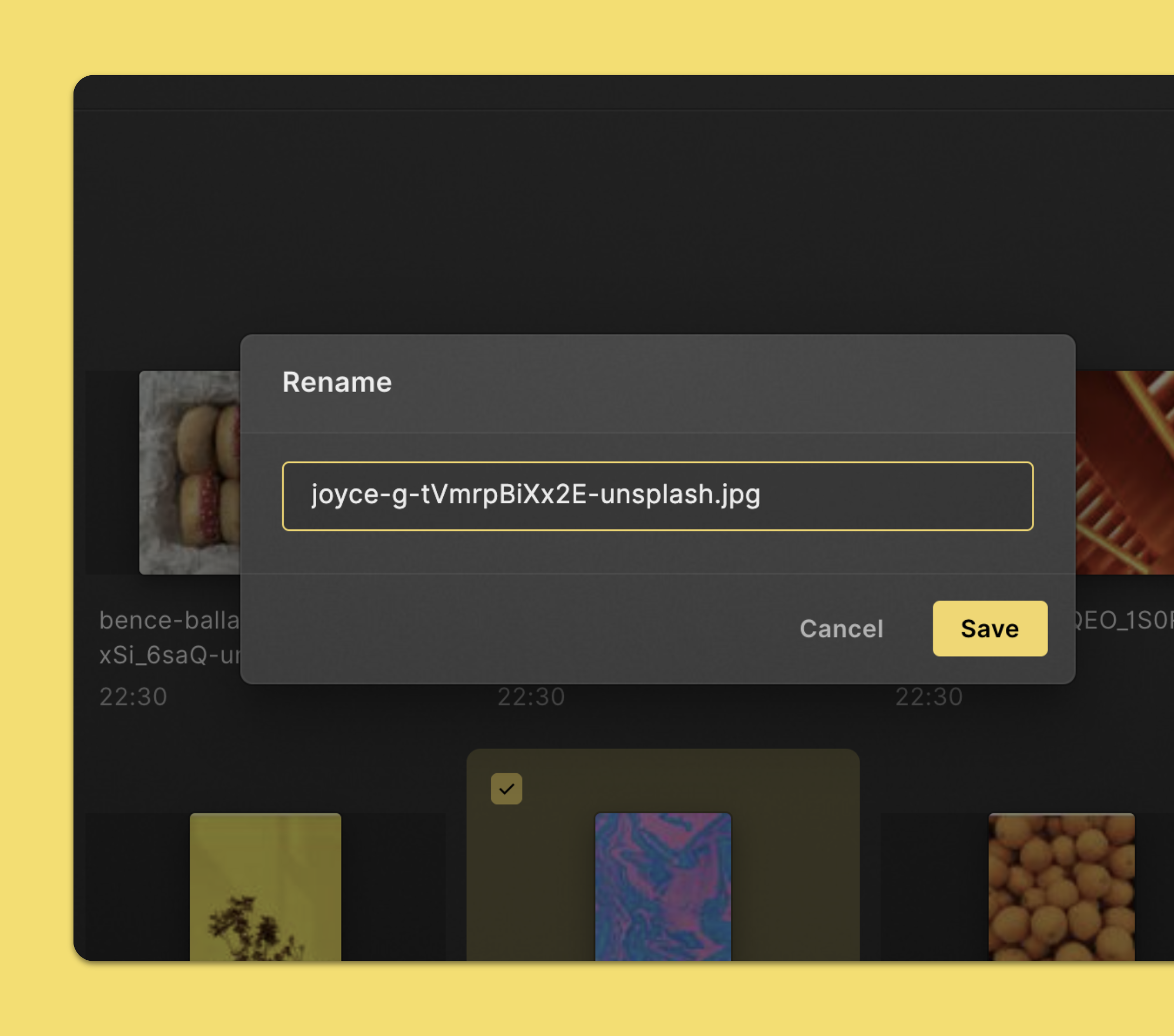
To give a file or folder another name, do this:
- Select the file you’d like to rename.
- Click More in the command menu in the top section of the page. Then click Rename in the dropdown menu.
- Change the name of the file or folder.
- When you’re ready, click Save.
Delete a file or folder
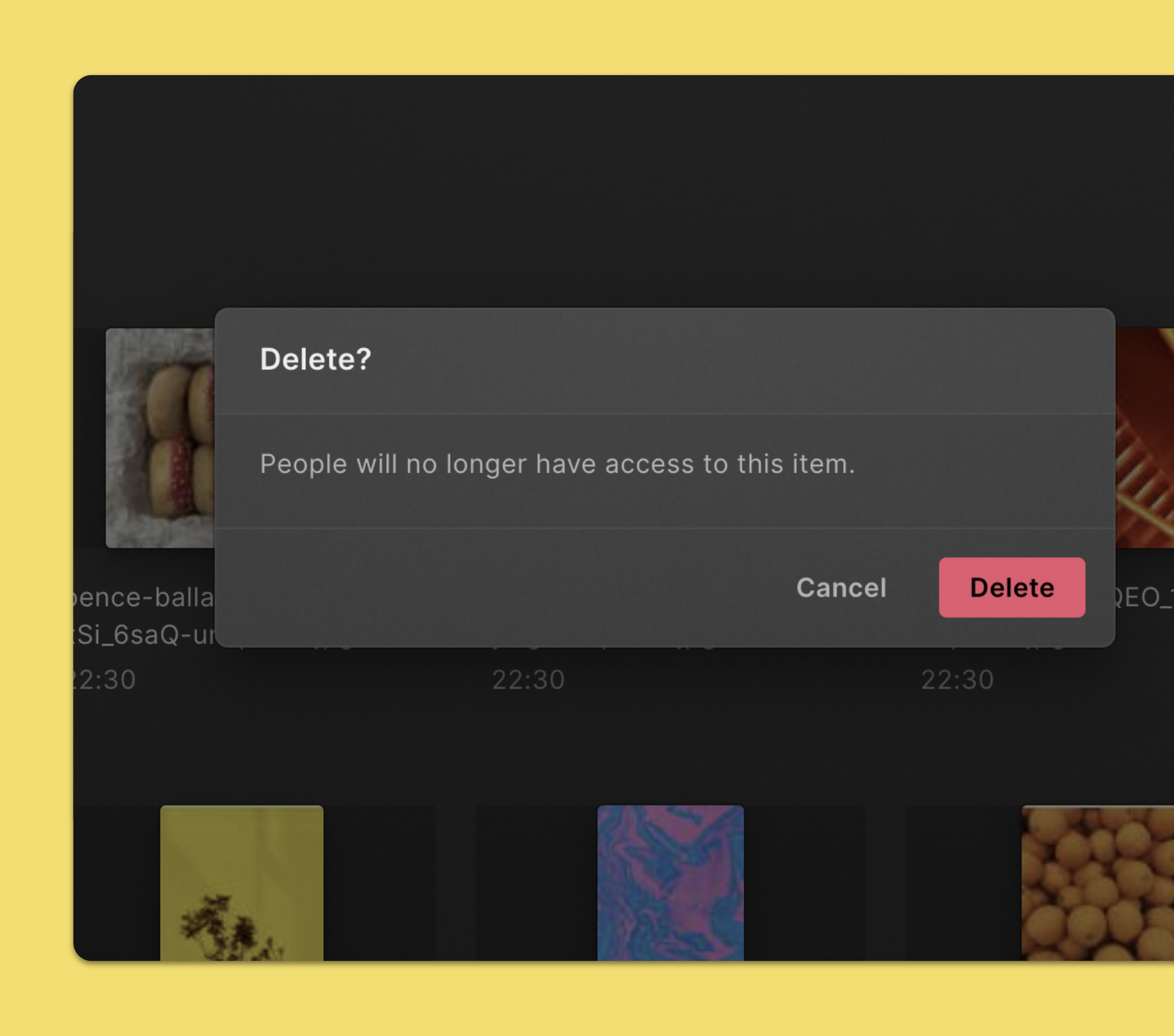
If you want to delete a file or folder you can:
- Select the file or folder you’d like to remove.
- Click More in the command menu in the top section of the page. Then click Delete in the dropdown menu.
- Click Delete again to confirm.
The deleted file or folder will be moved to the bin. It will remain there until it is permanently deleted after 30 days. Once deleted forever, it cannot be recovered.
Permanently delete a file or folder
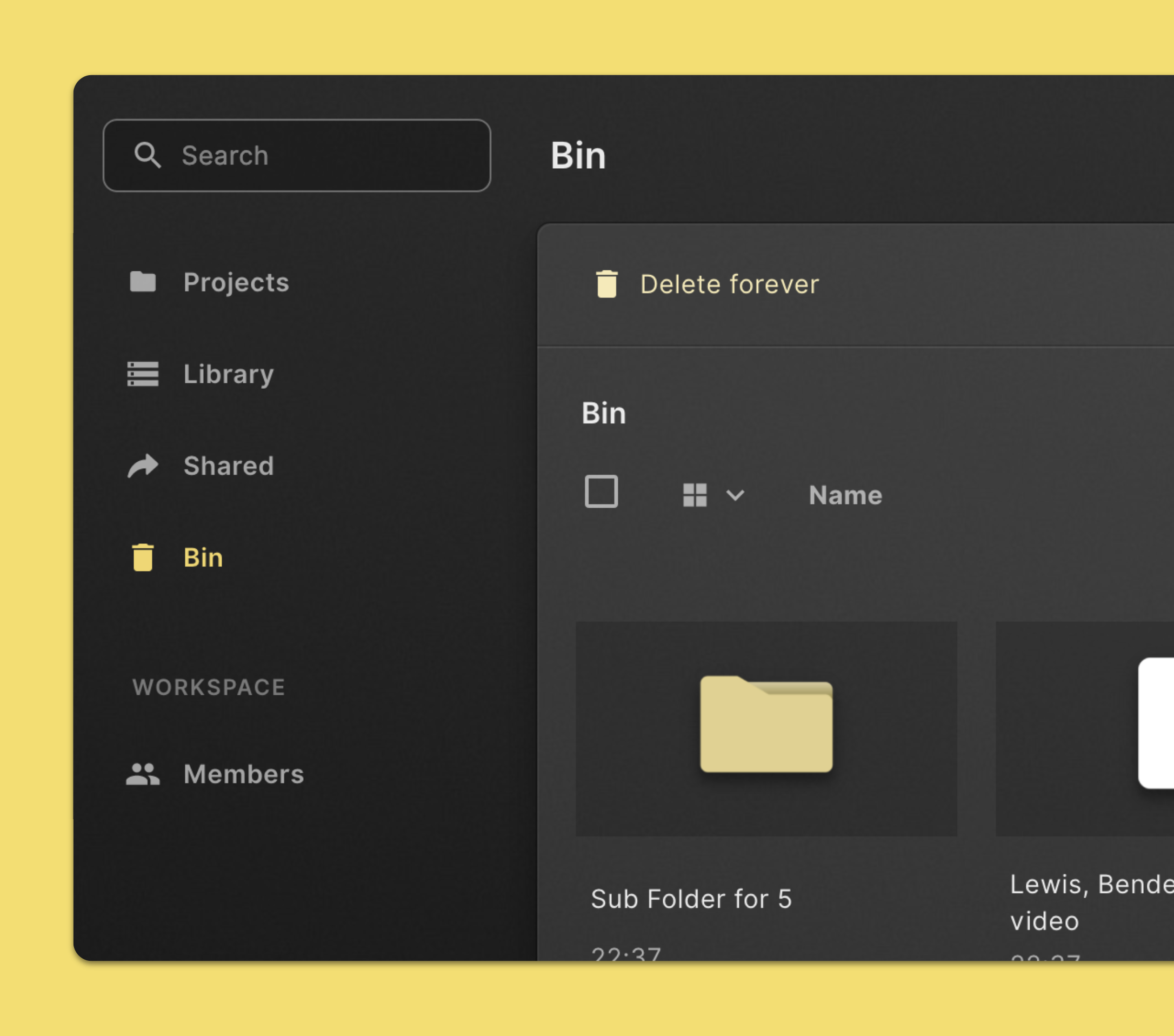
When a file or folder is sent to the bin, it will stay there for 30 days before it’s deleted forever. If you want to erase it permanently yourself, here’s how:
- Click Bin in the left navigation sidebar.
- Select the file or folder you’d like to delete permanently.
- Click Delete forever. Click Delete again to confirm.
Restore a deleted file
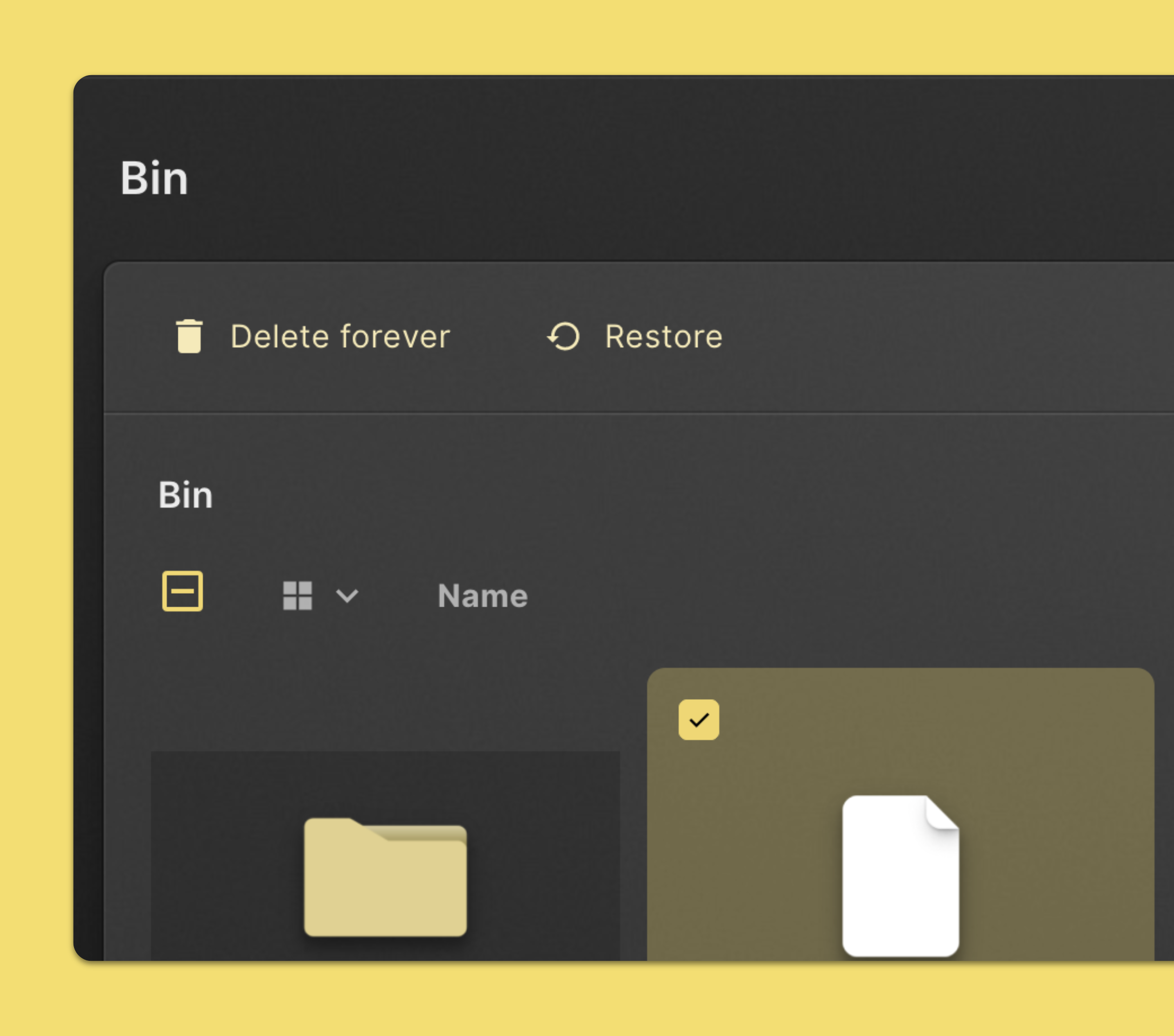
If a file or folder was deleted accidentally, you can restore it to its original location like this:
- Click Bin in the left navigation sidebar.
- Select the file or folder you’d like to recover.
- Click Restore.
Move a file or folder
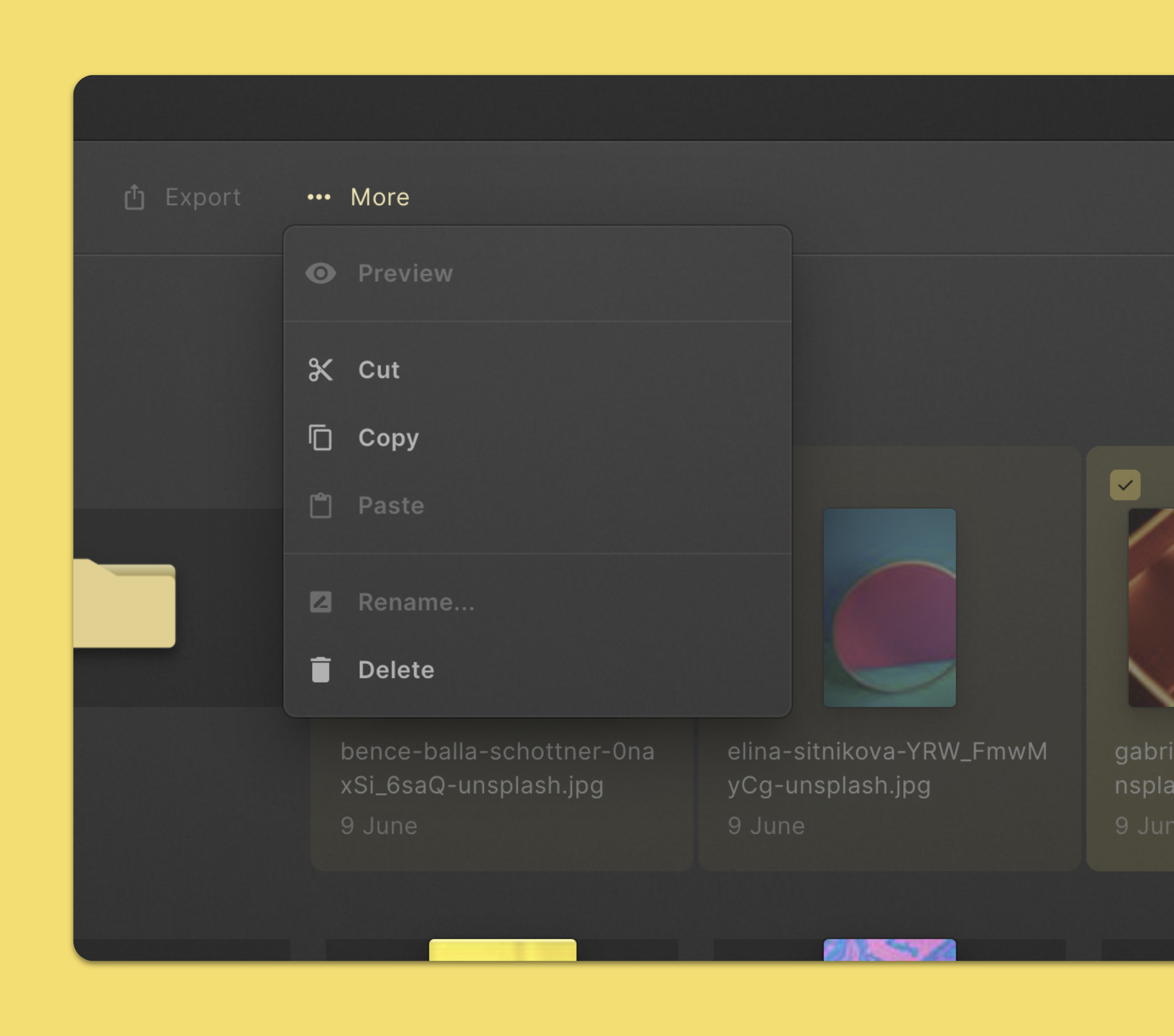
If you want to move a file or folder to another location, you can do so by cutting and pasting the item.
- Select the file or folder you’d like to move.
- Click More in the command menu in the top section of the page. Then click Cut in the dropdown menu.
- Go to the new location where you’d like to move the item to.
- Click More in the command menu in the top section of the page. Then click Paste in the dropdown menu.
Duplicate a file or folder
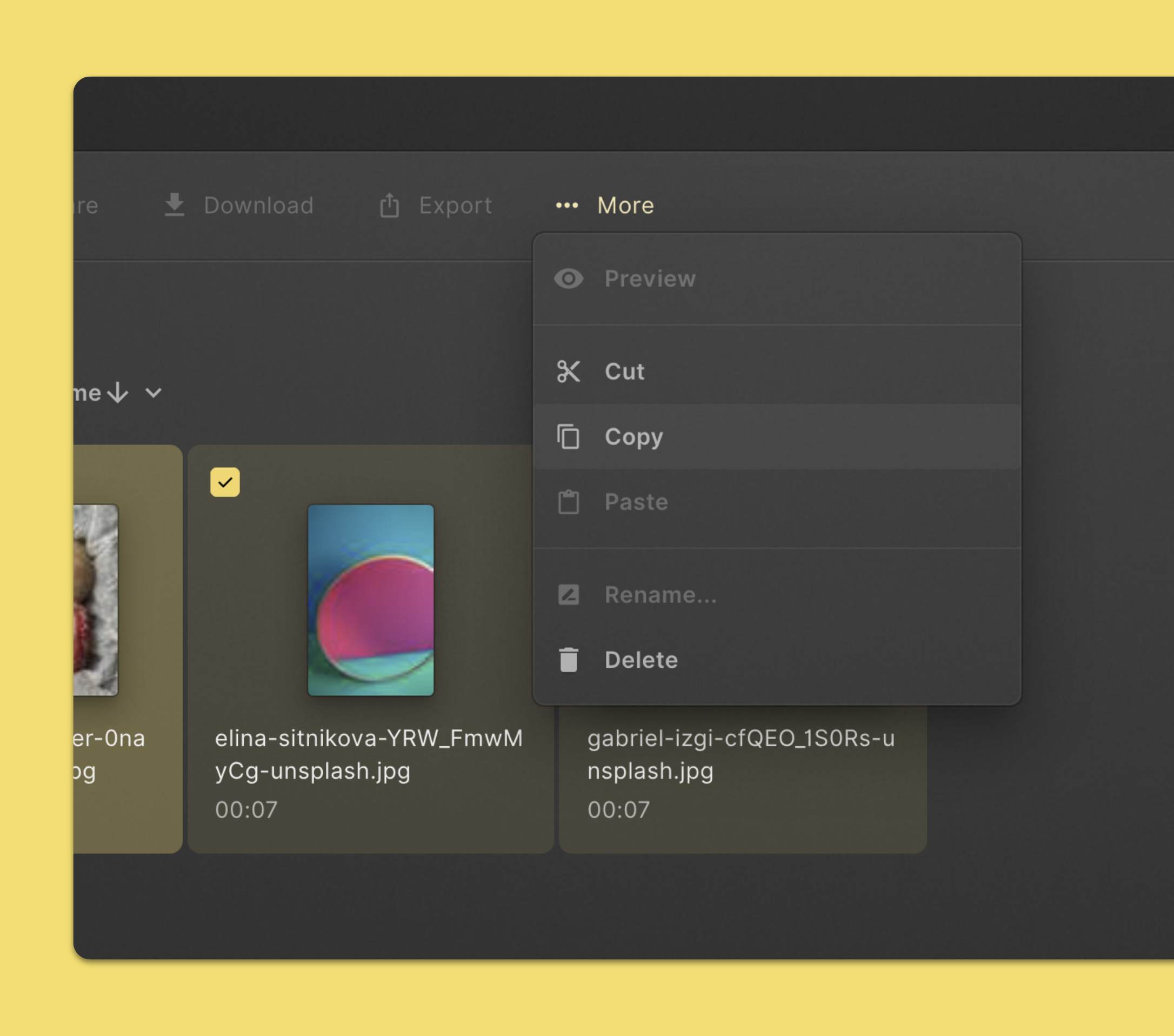
If there’s a need for you to duplicate a file or folder, here’s how:
- Select the file or folder you’d like to make a copy of.
- Click More in the command menu in the top section of the page. Then click Copy in the dropdown menu.
- If you want to place the new item in another location, go to that location.
- Click More in the command menu in the top section of the page. Then click Paste in the dropdown menu.
Do note that these copies won’t be synced. So if you make changes on one copy, it will not apply to the other copy.
View metadata for a file
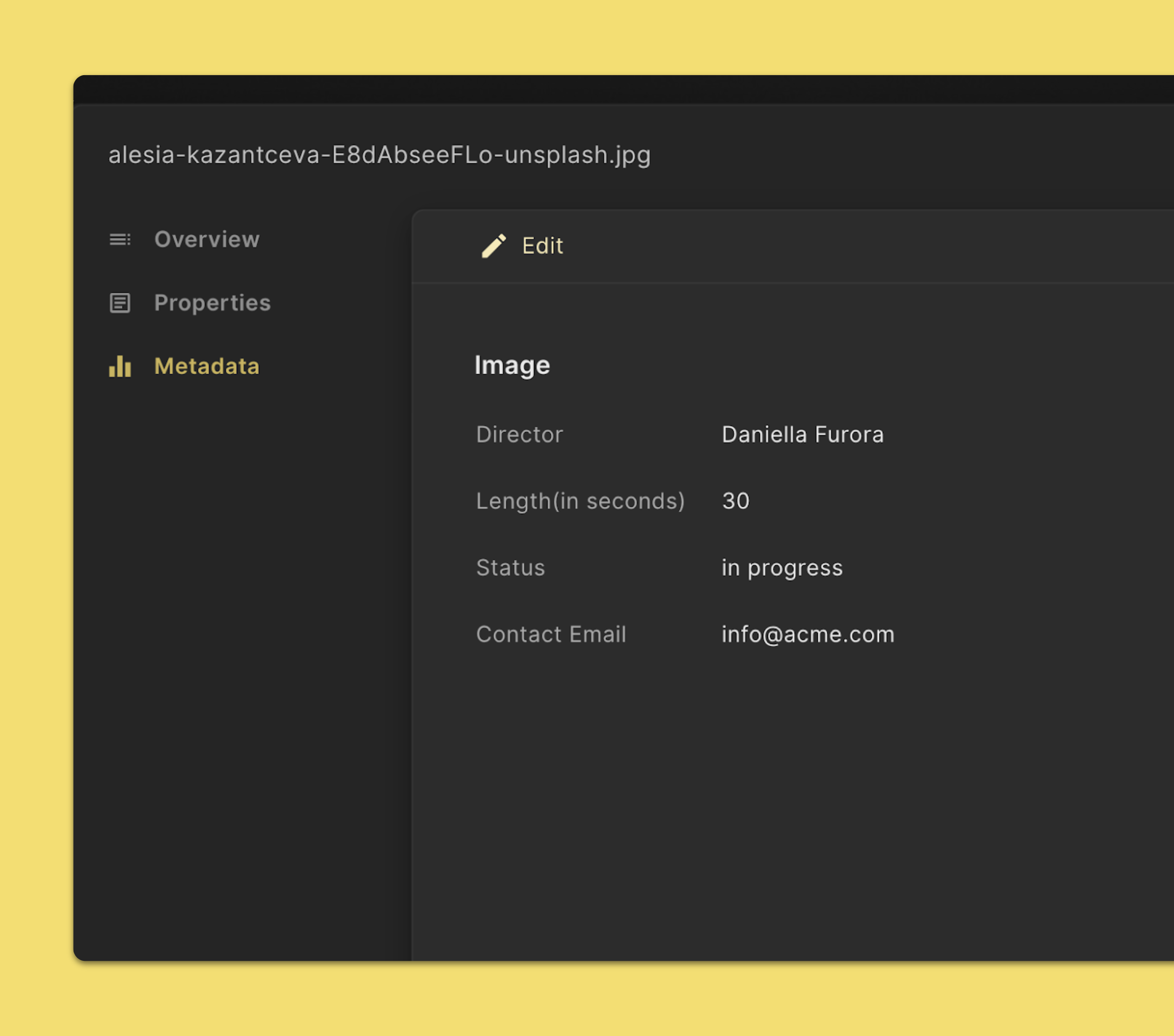
- Double-click the file you’d like to view metadata for.
- Click Metadata on the left side of the screen.
Add or change metadata for a file
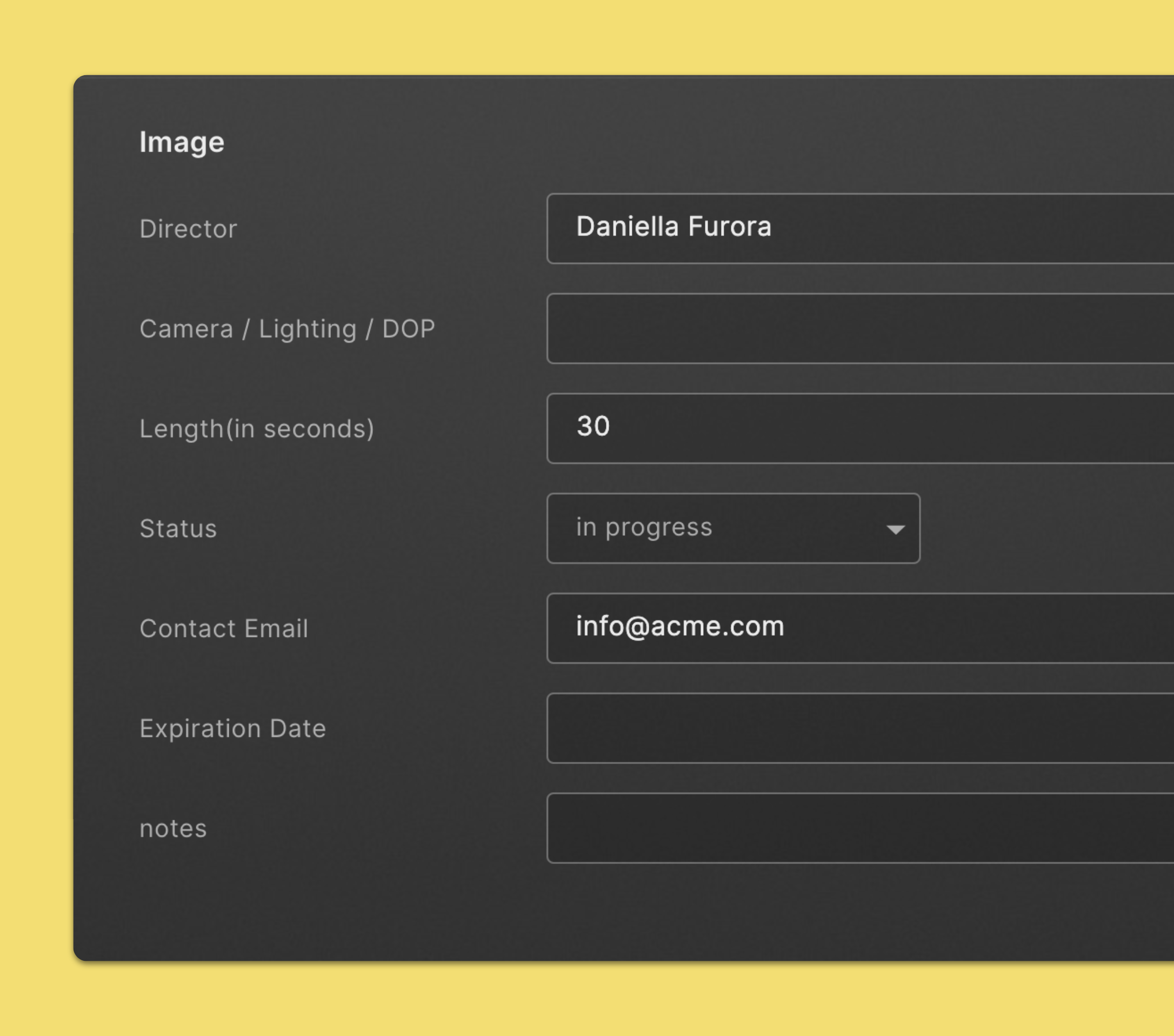
- Double-click the file you’d like to modify the metadata for.
- Click Metadata on the left side of the screen.
- Click Edit.
- Fill in or change the fields you need.
- When you're finished, click Save.