Share links
Whether you need to deliver a file or send a quick preview, Cube share links are a simple and safe way to share content with anyone. No need to sign in!
When working with external collaborators and clients, you will often need to send out many files. But you also want to make sure that you keep your files secure. In Cube, you can create a share link to a file or folder and send it out to anyone — with or without a Cube account. You can set an auto-expiration date so that the share link stops working by a certain date. Or add a password for extra security. You can also choose to let your viewers download the files you’ve shared with them.
Create a share link to a file or folder
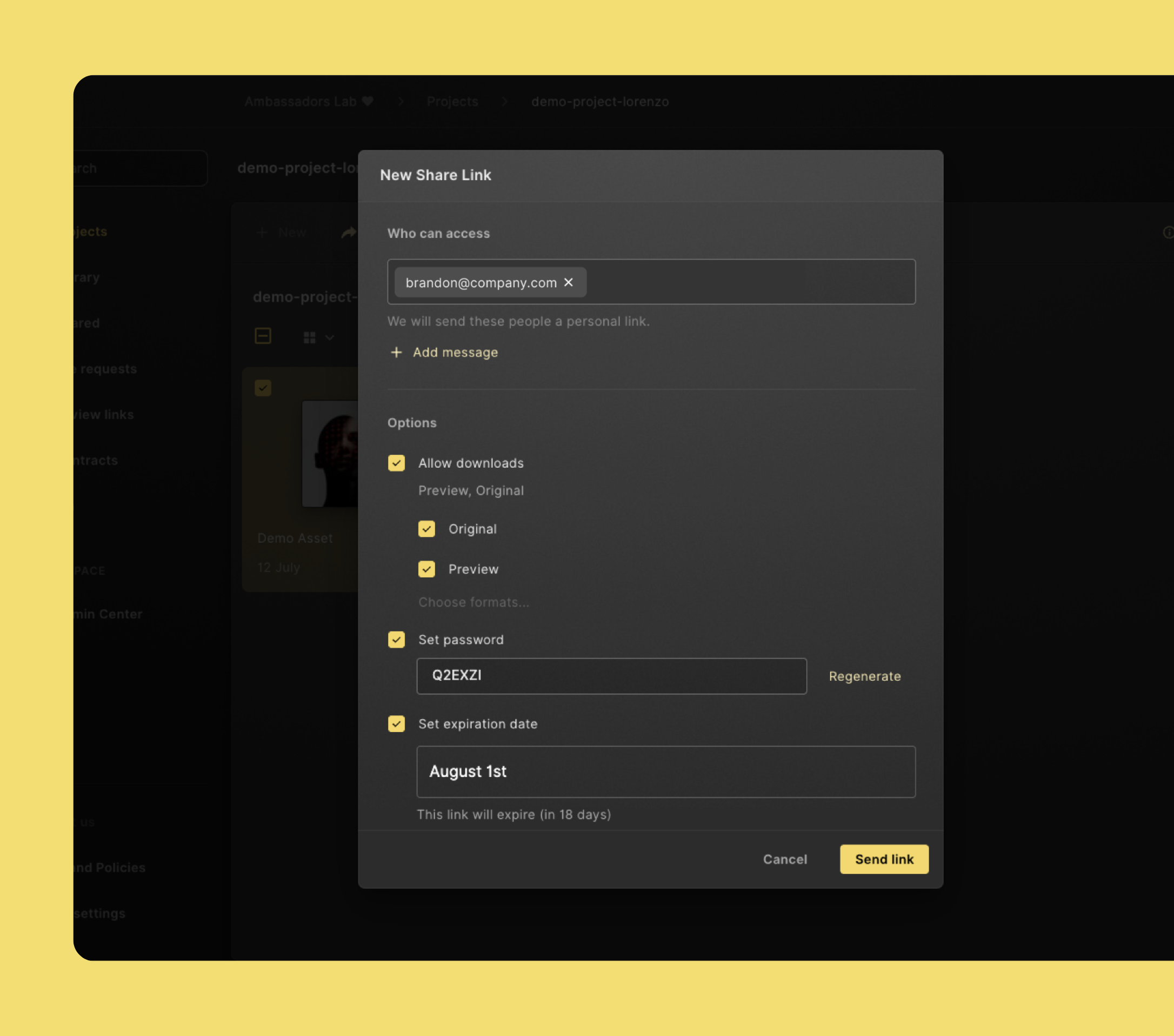
- Select the file or folder you'd like to share.
- Click Share in the command menu in the top section of the page, followed by Share Link.
- Click New Link.
- Fill in the email addresses of the people who should receive the link.
- Add a message, if you'd like.
- Choose if you want link recipients to download the files, and what kind of files they may download.
- Choose if you want to auto-expire the link on a certain date.
- When everything's alright, click Send Link.
The people you’ve chosen will now get a personal share link.
Open a share link
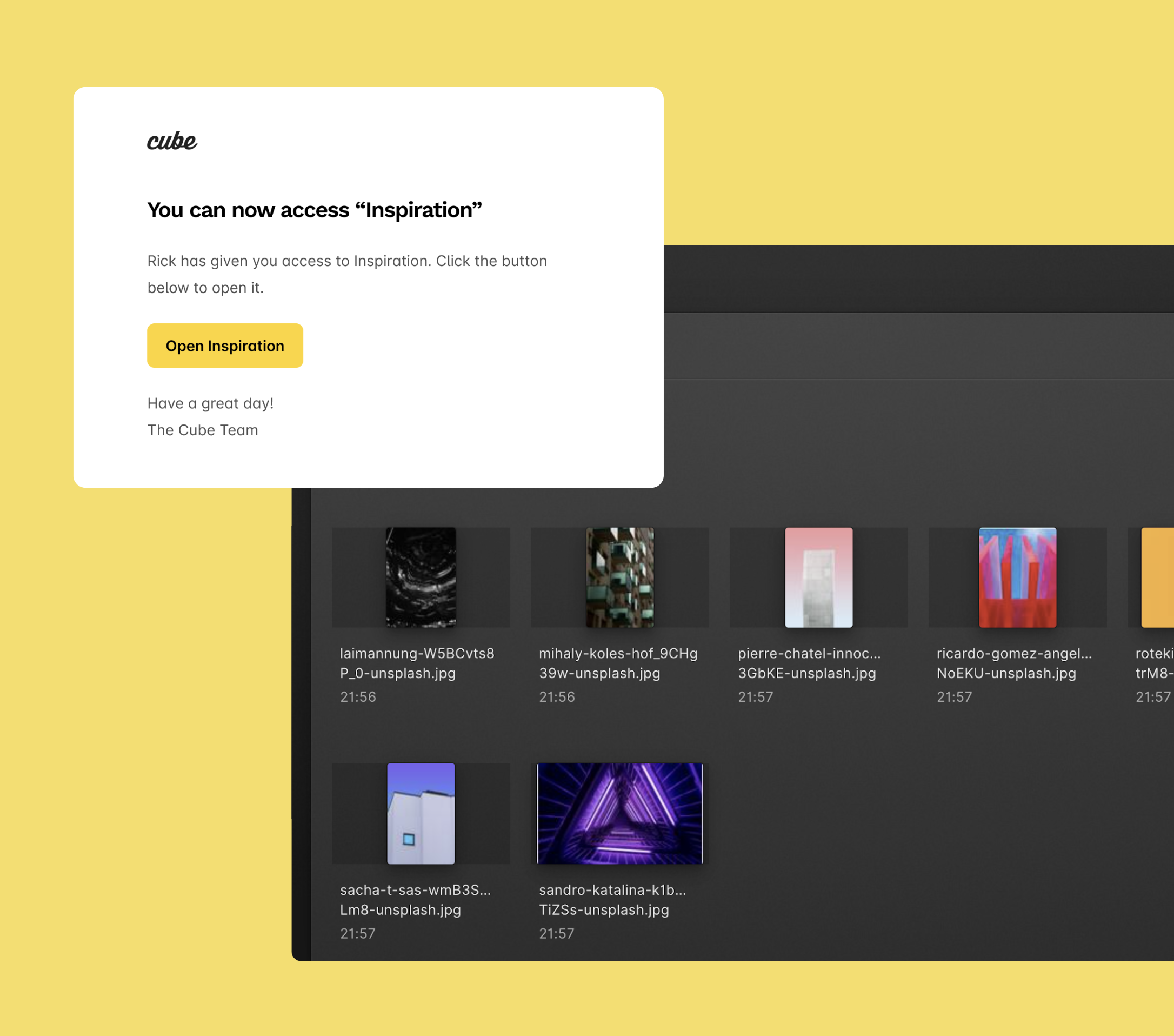
To open a share link someone has shared with you, follow these steps:
- Click Open in the email you’ve received.
- That’s all! No sign-in needed!
View a list of share links
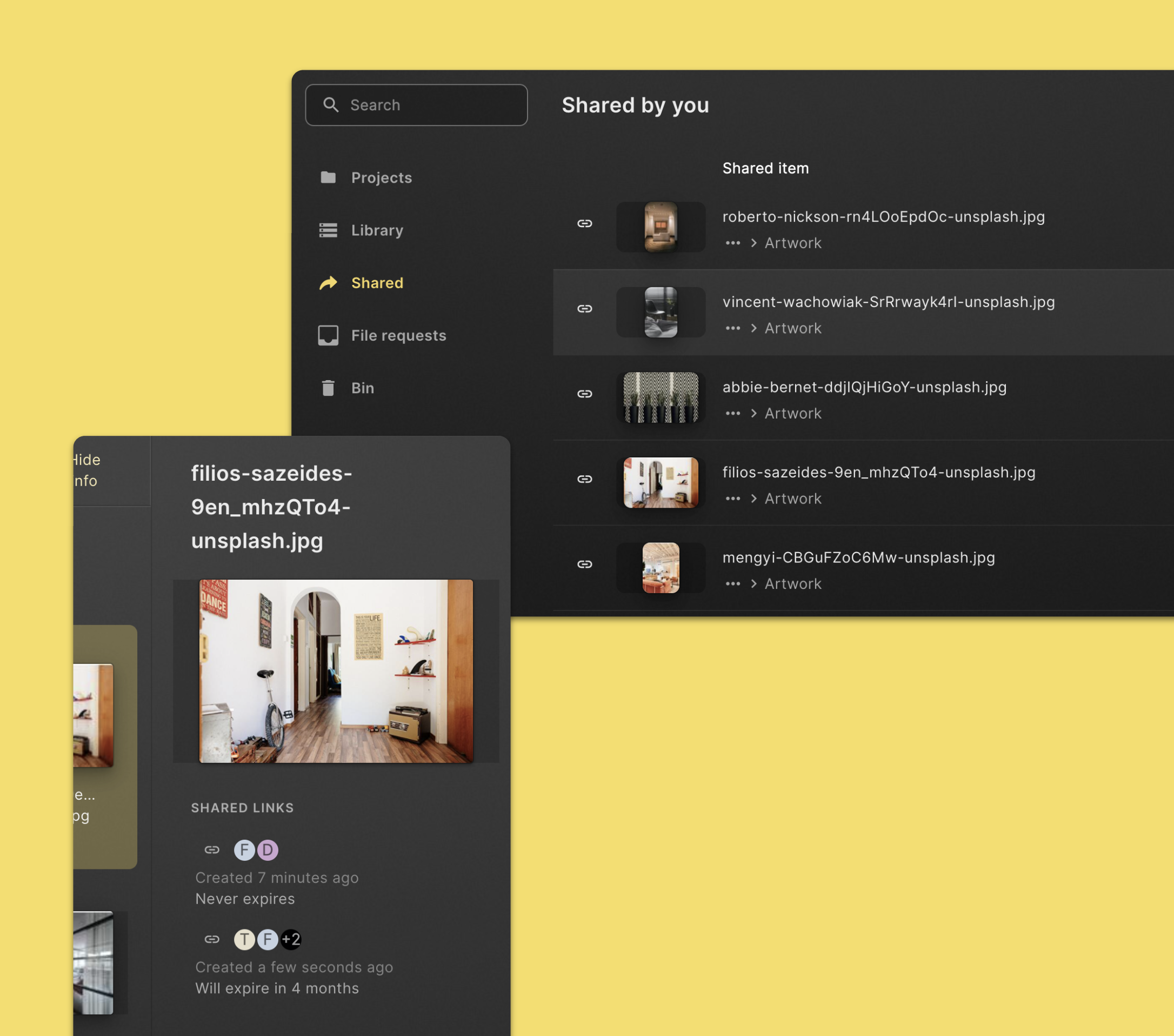
See all share links you’ve created
- Click Shared in the left navigation sidebar.
- Here's a list of all share links you've created.
See all share links for a file or folder
- Select the file or folder you'd like to see the links for.
- If the info pane on the right is not visible, click Show info in the command menu in the top section of the page.
- You can see a list of shared links in the info pane on the right.
Change settings for a share link
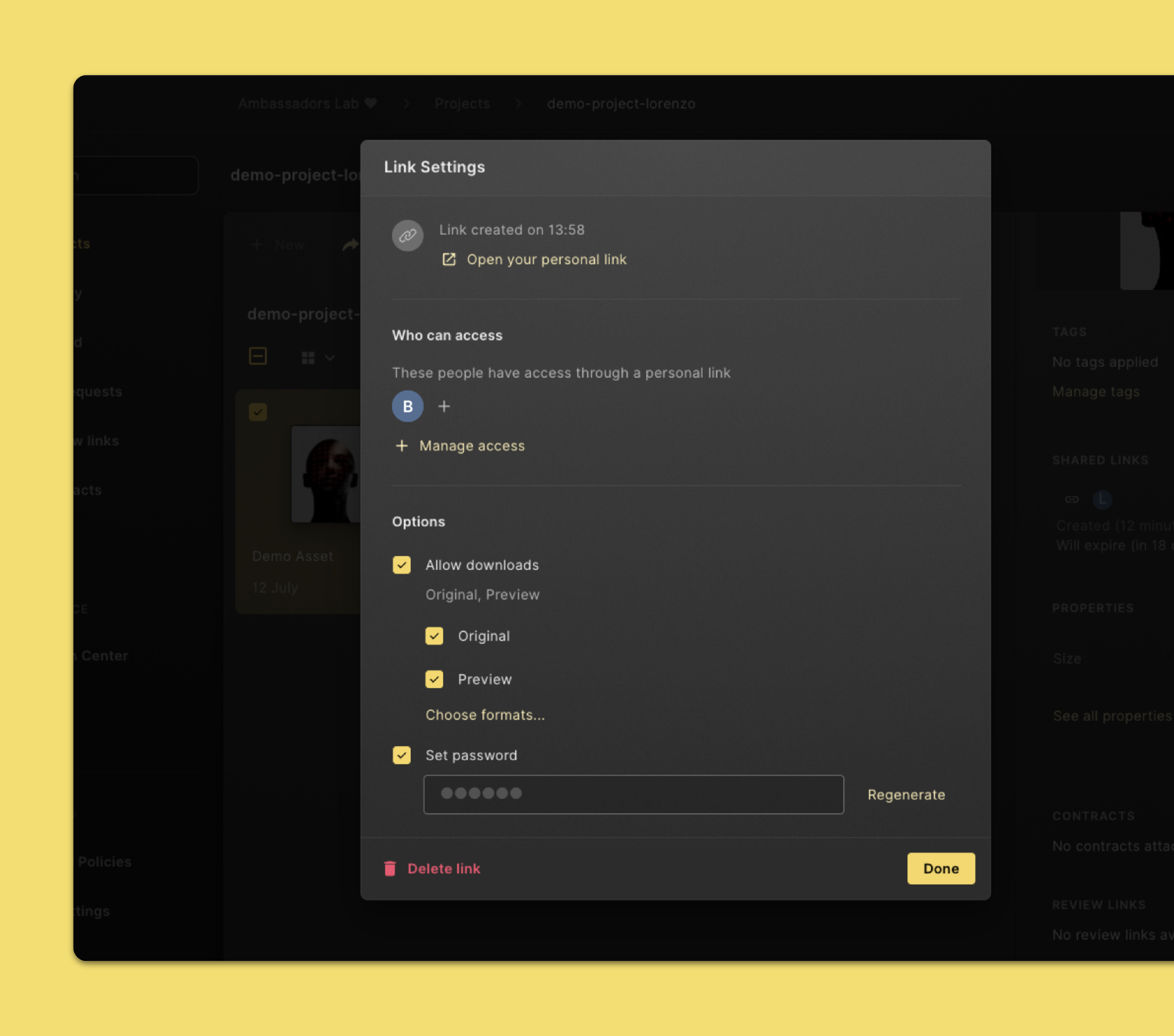
- Select the file or folder you'd like to modify the share link for.
- If the info pane on the right is not visible, click Show info in the command menu in the top section of the page.
- Click the link you'd like to change in the info pane on the right.
- Change the settings you'd like to see different.
- When you're done, click Save.
Tip: You can also find shared links you’ve created in the Shared Overview page. Click Shared in the left navigation sidebar.
Delete a share link
- Select the file or folder you'd like to delete the share link for.
- If the info pane on the right is not visible, click Show info in the command menu in the top section of the page.
- Click the link you'd like to delete in the info pane on the right.
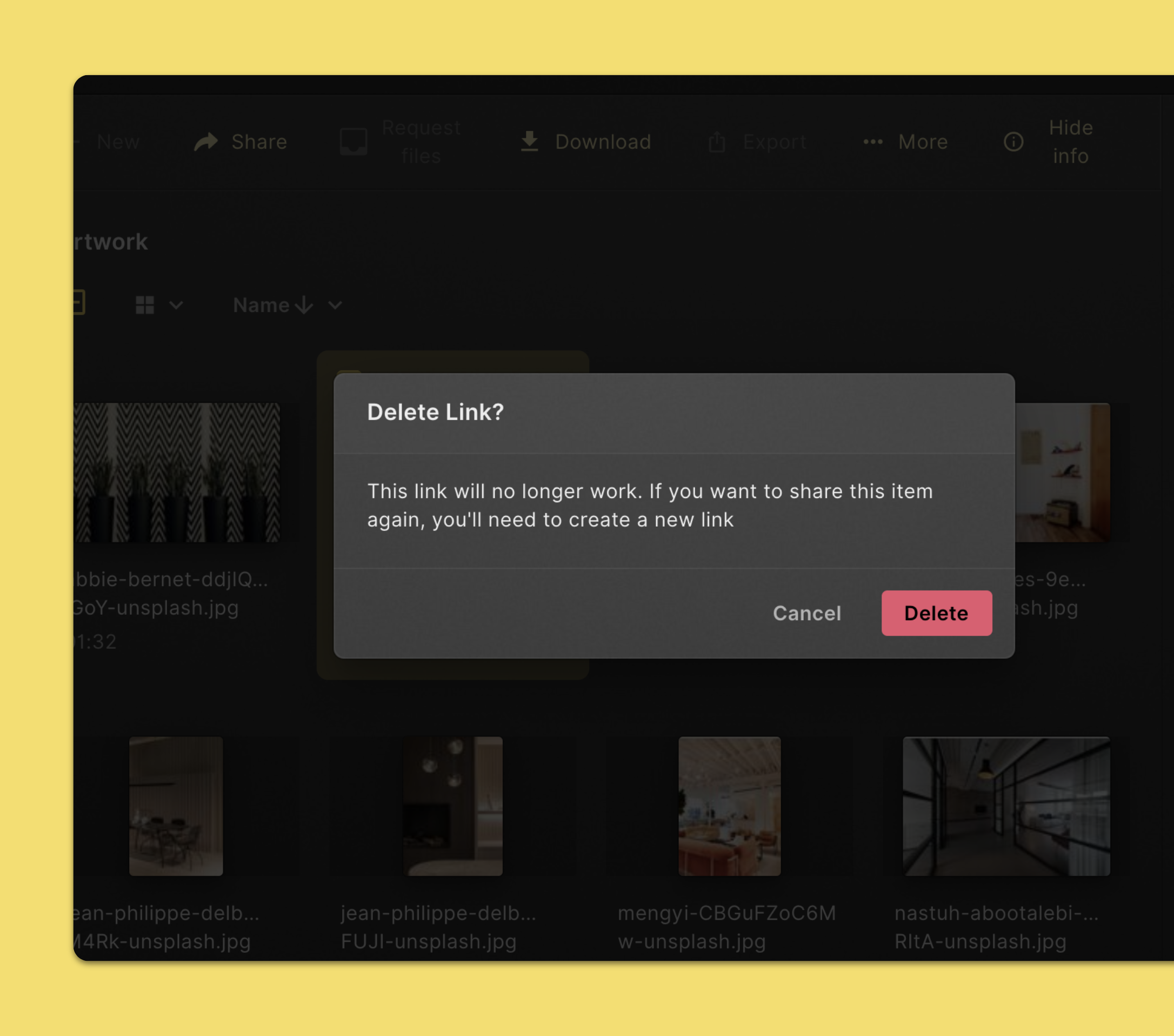
- Click Delete. Click Delete again to confirm.
Tip: You can also find shared links you’ve created in the Shared Overview page. Click Shared in the left navigation sidebar.