Managing the workspace
As your organization’s Cube workspace admin, you’ll want to manage default settings, members, integrations etc. You can do this in the Admin Center.
To change other workspace settings, please have your Cube’s workspace admin contact us at support@cube-cloud.com.
Roles
By default there two user roles for workspace members.
- Member. This role allows you to perform all basic functions. You can do most work you need with this role.
- Admin. An Admin role is the same as a Member role but you can also perform workspace management actions.
If you require more distinct roles, please contact support@cube-cloud.com.
Change workspace name
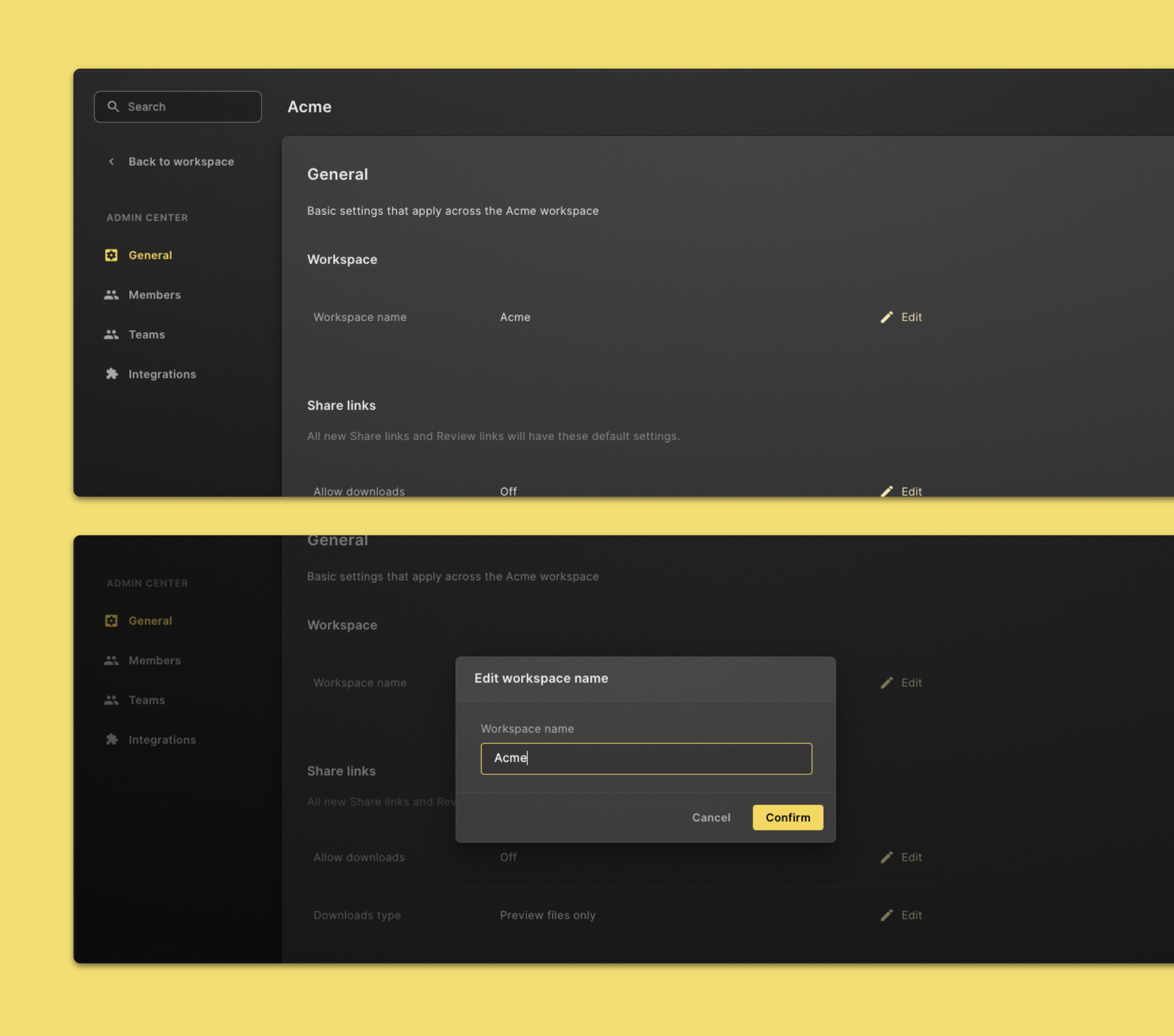
- Click Admin Center in the left navigation sidebar.
- Click Edit next to the Workspace name.
- Rename the workspace in the input field.
- Click on the Confirm button to finish.
Share link settings
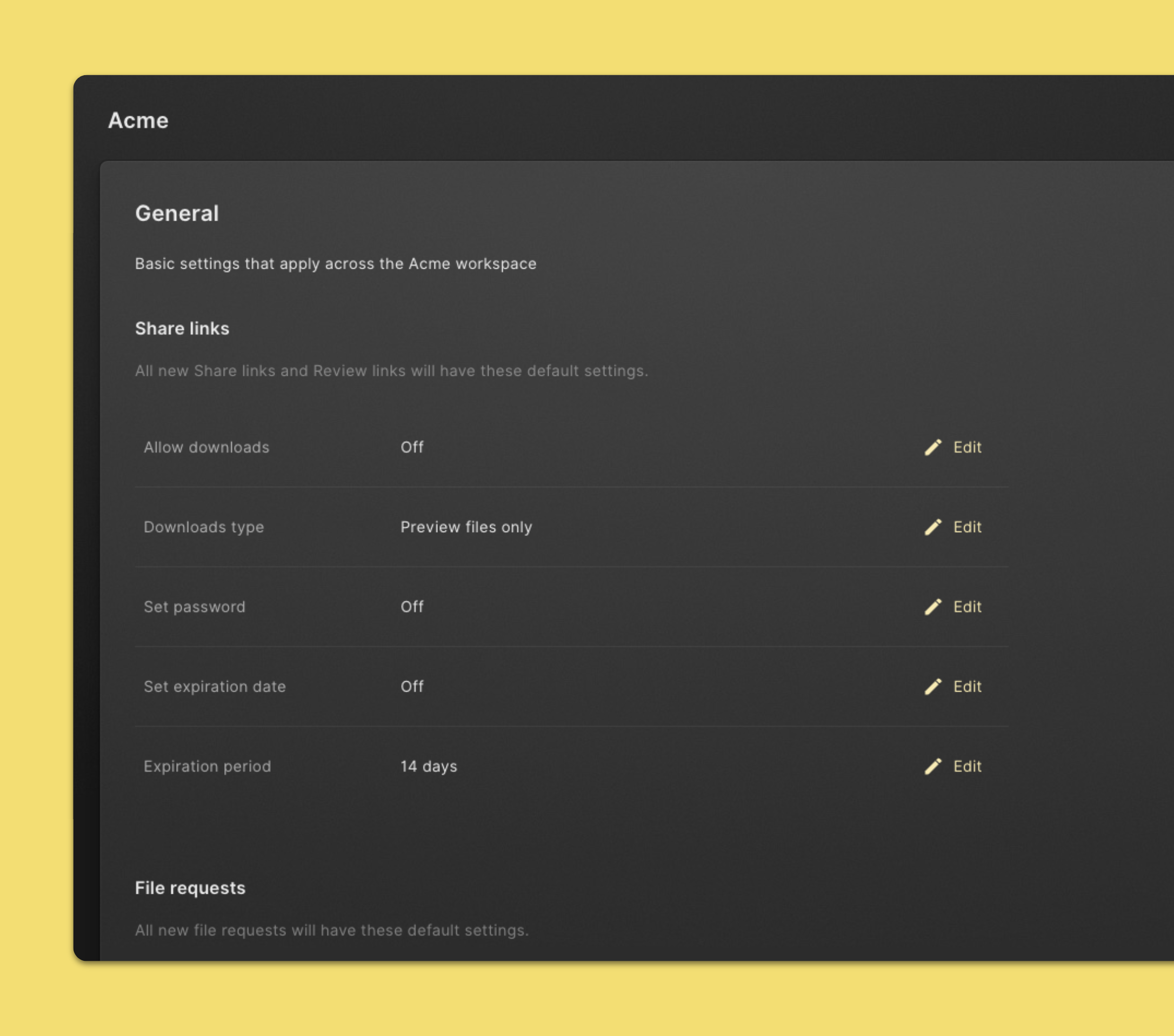
In the share like settings you can set defaults for all new Share links and Review links.
- Turn on / off downloads.
- Select downloads type: Preview files or Original files.
- Turn on / off password.
- Turn on / off expiration date.
- Set an expiration period.
File request settings
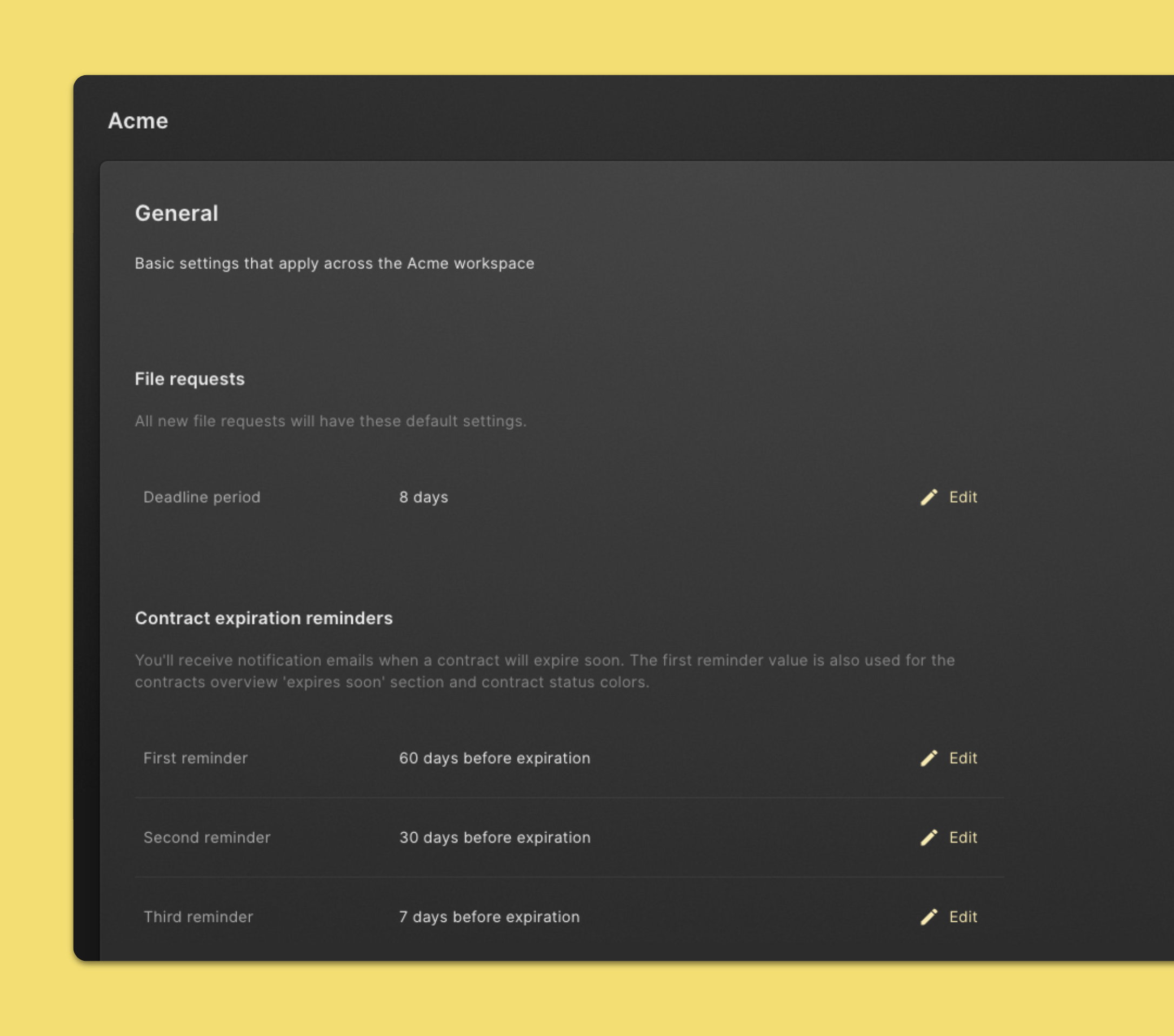
In the file request settings you can set defaults for all new file requests.
- Set a deadline period.
Contract expiration reminders
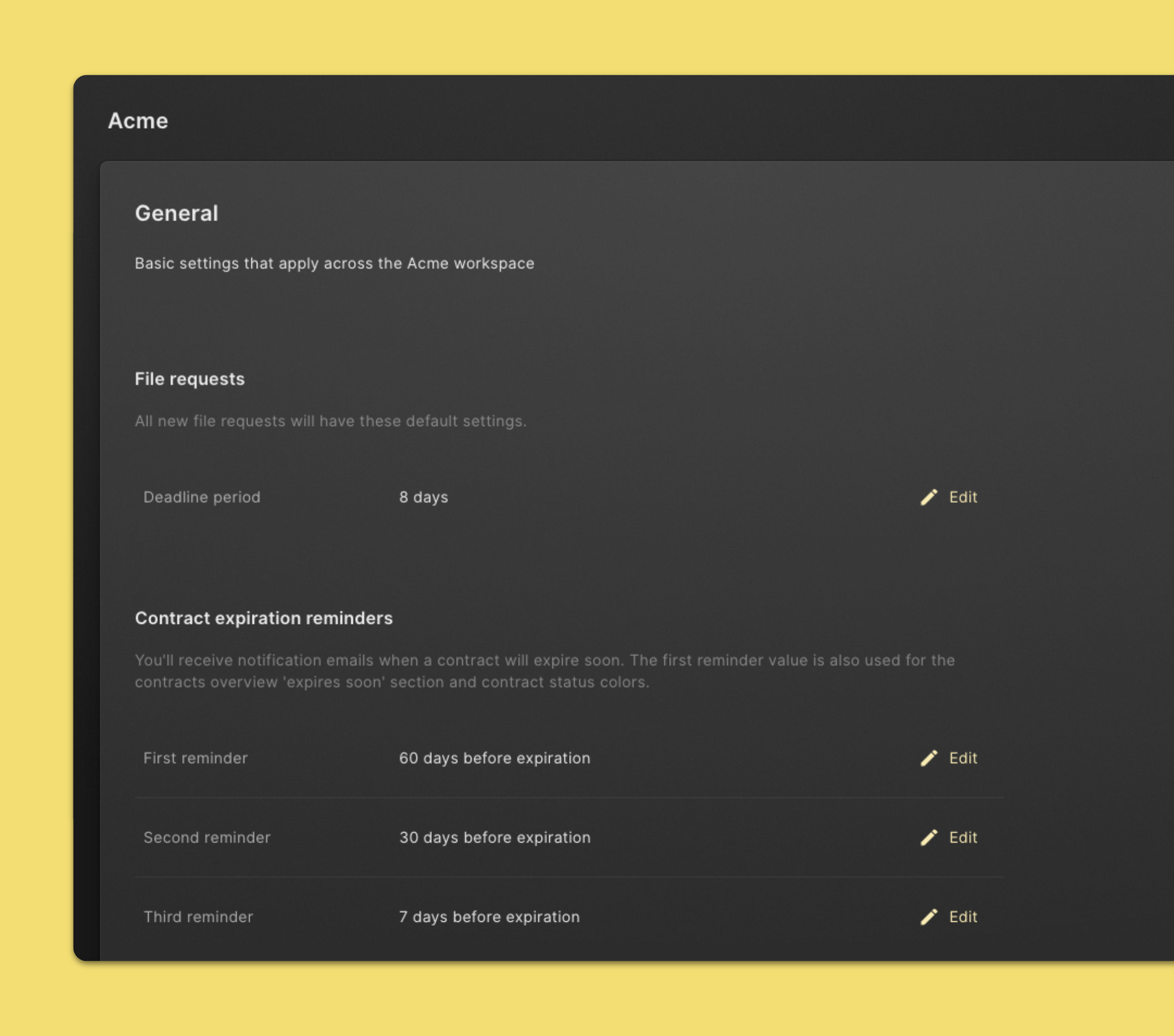
In the contract expiration reminders you can set default expiration reminders for all contract notification emails. You’re able to set:
- First reminder
- Second reminder
- Third reminder
See who has access to your workspace
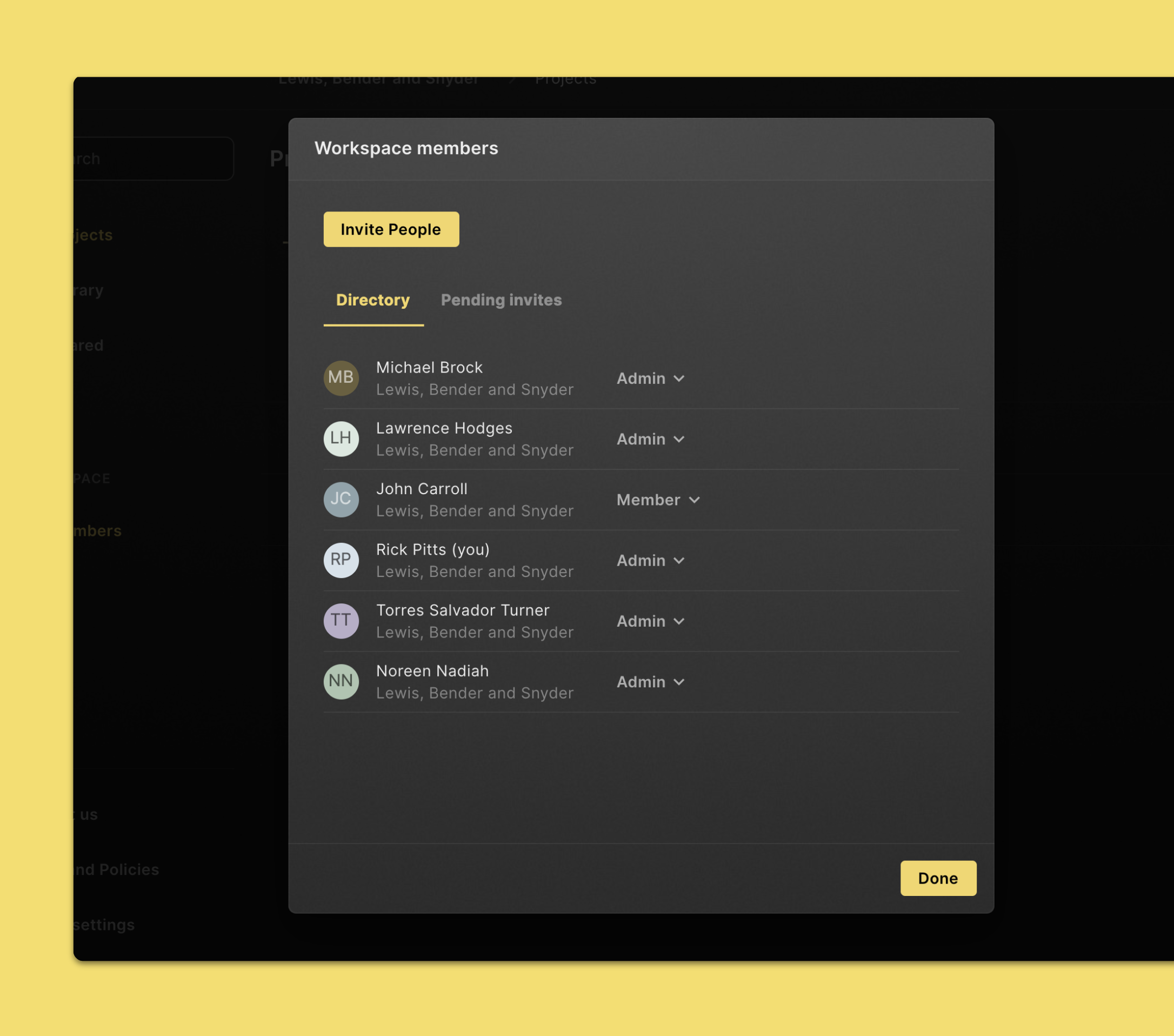
- Click Members in the left navigation pane.
- Here’s a list of all people who has access to your workspace.
Invite a new member to the workspace
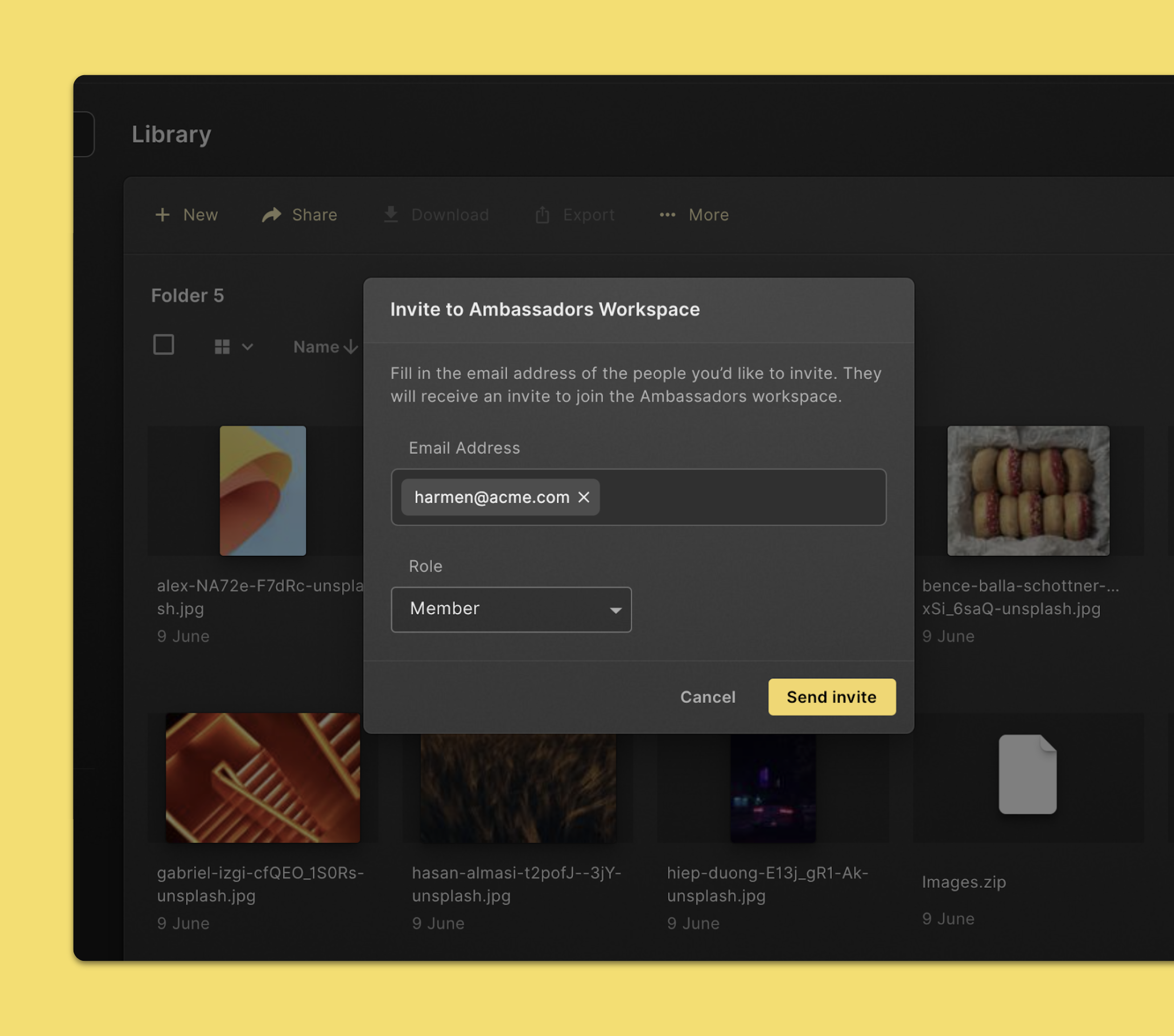
To invite people to your organization's Cube workspace, you'll need to send them an invite. Here’s how:
- Click Members in the left navigation pane.
- Click Invite people.
- Enter the email addresses of the people that you’d like to invite.
- Choose a user role for these people.
- Click Send invite.
You should only invite employees to the workspace. If you want to share files with or request files from someone outside your company, you can send a share link or create a file request instead.
Remove someone from the workspace
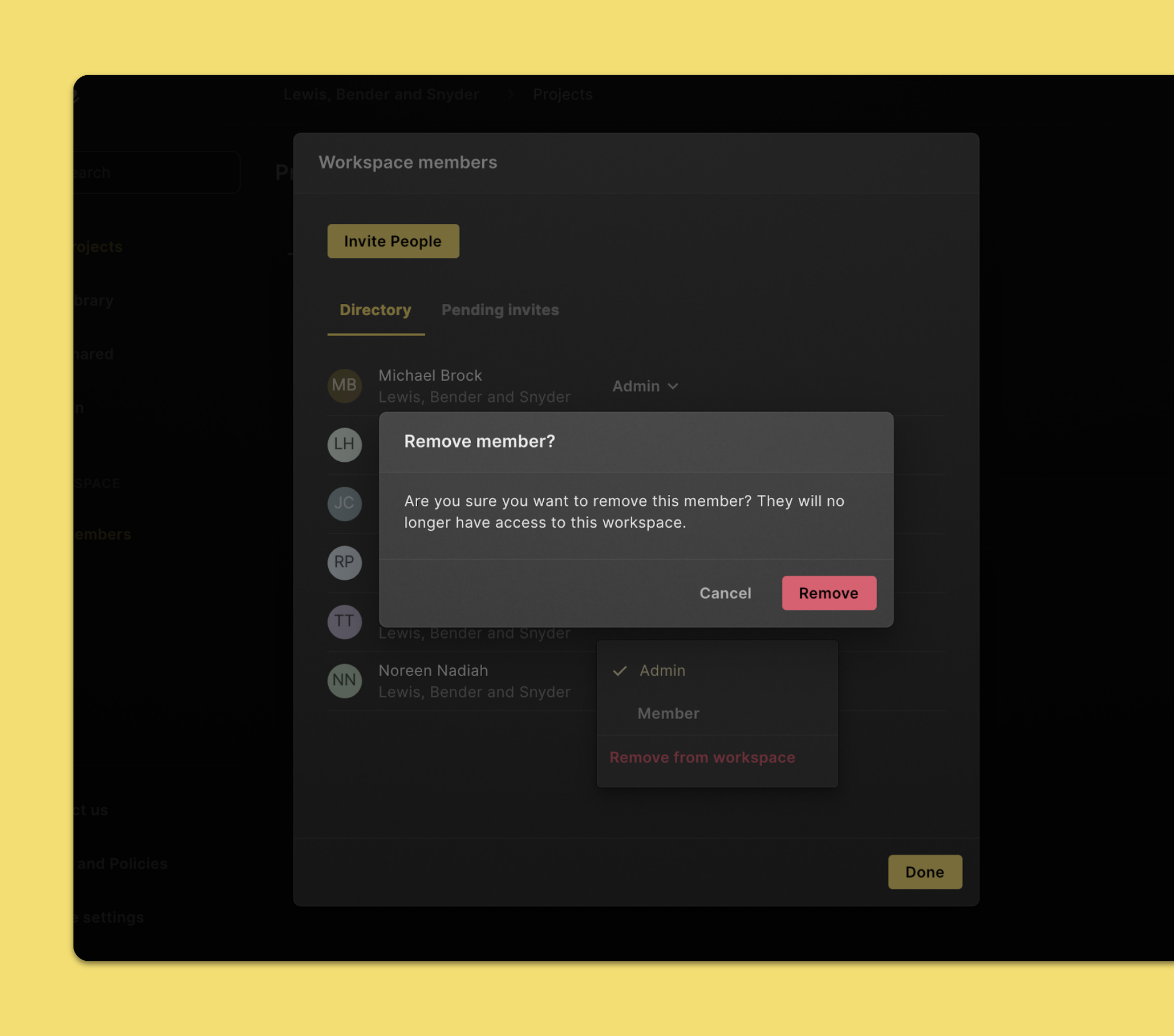
If someone stops working at your company or no longer needs access to your workspace, you can remove them.
- Click Members in the left navigation pane.
- Find the person you’d like to remove. Click on the role dropdown.
- Click Remove from workspace. Click Remove again to confirm.
Change what someone can do in a workspace
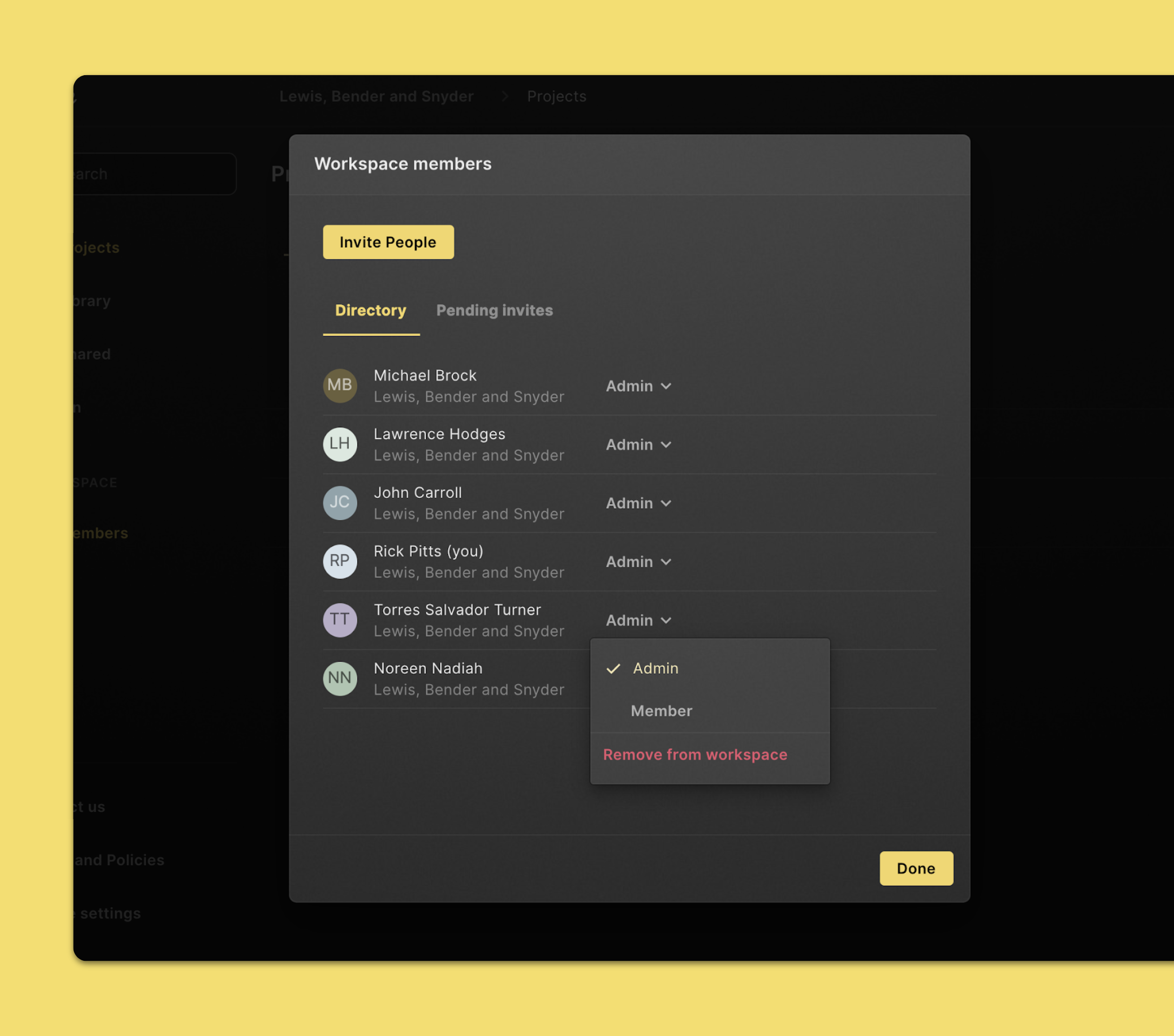
When you need to extend or limit what someone can do in a workspace, you can change their workspace member role.
- Click Members in the left navigation pane.
- Find the person you’d like to remove. Click on the role dropdown.
- Click the role you want to change to.
Set up your first YouTube Export
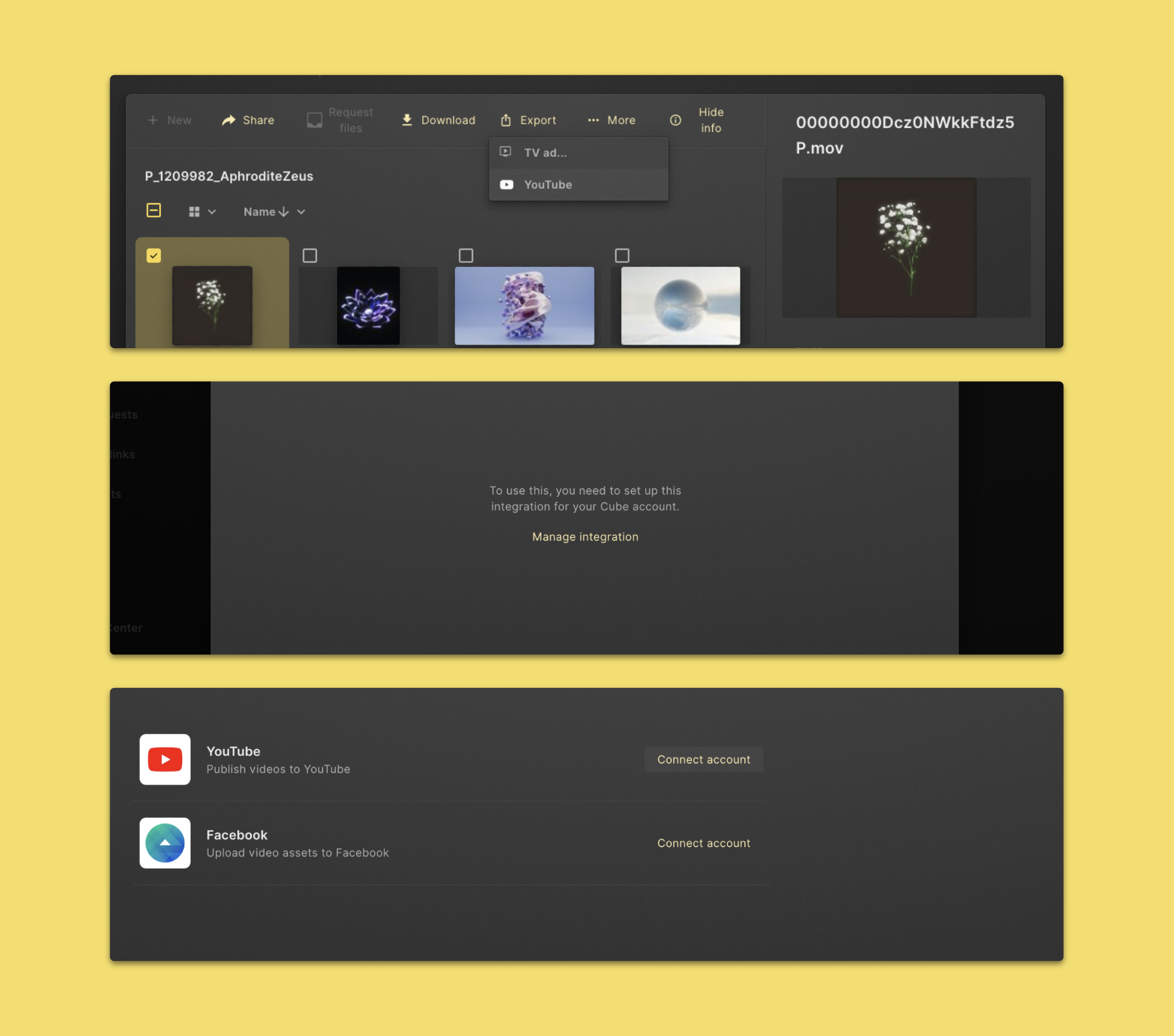
- Select a video asset you would like to export to YouTube.
- Click Export and YouTube in the command menu in the top section of the page.
- Click Manage integration.
- Click Connect Account in the YouTube column.
- Select the Google account you would like to connect.
- Click the Done button in the bottom right.
- Select the Account and Channel you would like to export to and click on Next in the bottom right.
- Fill in or change the fields you need. Input for the Title is required.
- When you're finished, click Export.
Export to YouTube
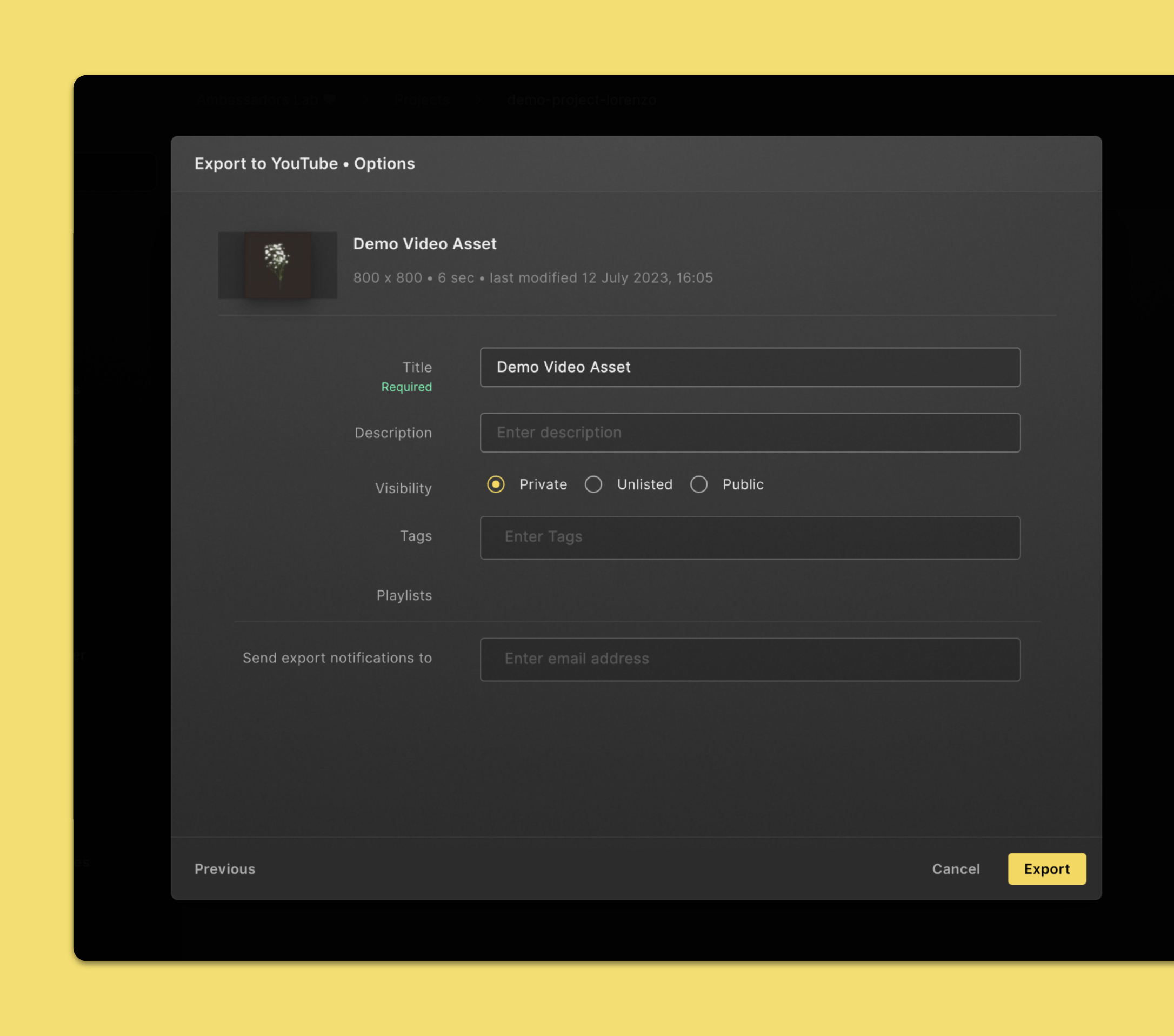
- Select a video asset you would like to export to YouTube.
- Click Export and YouTube in the command menu in the top section of the page.
- Select the Account and Channel you would like to export to and click on Next in the bottom right.
- Fill in or change the fields you need. Input for the Title is required.
- When you're finished, click Export.
YouTube settings
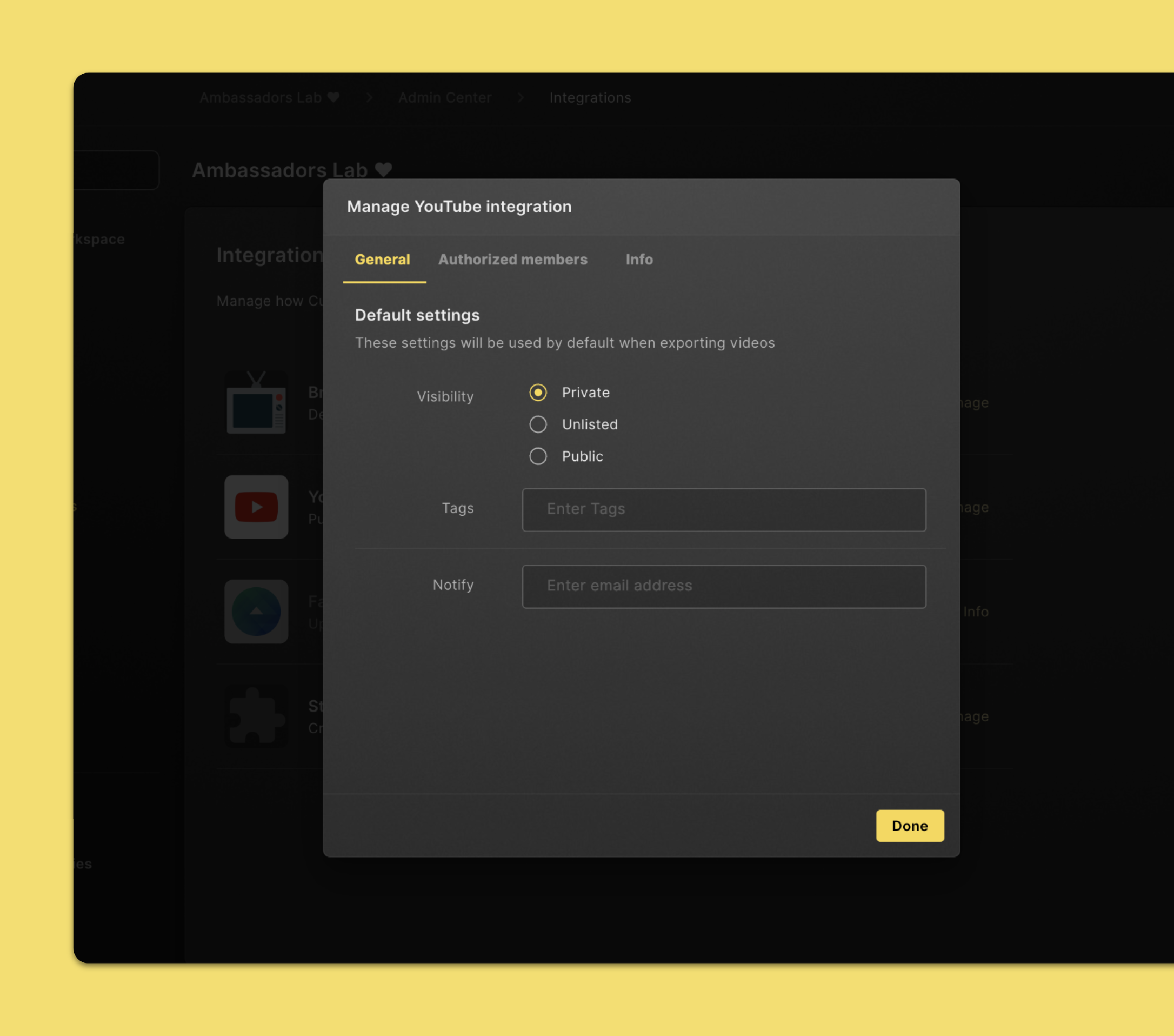
Navigate to the Manage YouTube integration:
- Click Admin Center in the left navigation sidebar.
- Click Integrations in the left navigation sidebar.
- Click Manage in the YouTube column.
In Manage YouTube integrations you can set default settings for all video exports to YouTube. Here you can set:
- Visibility: Private, Unlisted or Public
- Tags
- Email notifications
Other workspace settings
At the moment, you won’t be able to change other workspace settings yourself. We’ll be happy to update your workspace settings. Your organization’s workspace admin can reach out to us at support@cube-cloud.com.